
dcmemojljgjdnjfckdmffgkcnooejahg

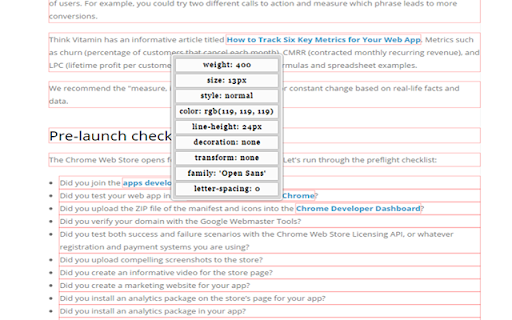

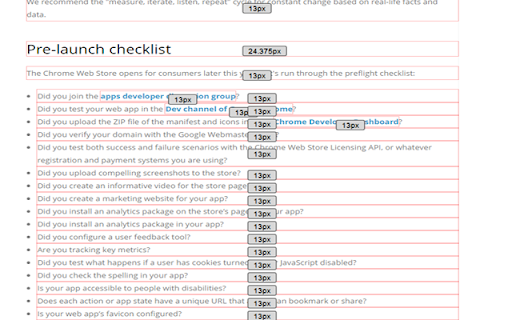
An extention to show/inspect and analyze fonts in web-pages, on single element or the whole document. An extension to show/inspect text fonts in webpages. NOTE: On first installation, reload the already opened tabs if it's not working. On chrome web store pages it's not working or is blocked by them. Show in page the following informations: * font size; * font weight; * font main family; * font style; * font color; * line height; * font decoration; * font transformation; * letter spacing; Switch between hex and rgb colors from the dedicated option page or the popup! Right-click contextual menu! An option to hide contextual menu! An option to show on mouse-over all the infos on the font or single info. For any problem or bug open a ticket on the support tab, i will answer as soon as possible. ====Possible problem==== On first installation, RELOAD the already opened tabs if it's not working. On chrome web store pages it's not working or is blocked for some reason. Case not on hover: * If text is inside nested overflow:hidden element the popup will be hidden * If your element have some overflow this pugin will override them with overflow:visible than it will revert them when turn off. * If there are async element you should re-launch. ====Change Log==== * 5.0.0 : move to manifesto v.3 and code related to v.3, add switch between rgb and hex colors * 4.0.0 : review graphics, removed contextual menu "showAlways", now on click the popup will appear, and add option page to toggle contextual * 3.0.0 : Restyle and code refactoring, add some other option and right-click menu single info * 2.0.0 : Add right-click contextual menu that will show all fonts info on mouse hover, add option to prevent click to the left-click, clicking a text save the info on a right panel if "select on click" is enabled, add letter spacing to the list

Measuremate — Pixel Ruler for Web Design
Measure distances between any elements on any website. Pixel ruler + CSS inspector for pixel-perfect design handoff. Measure distances between any elements on any website. Pixel ruler, CSS inspector, and alignment guides — everything you need for pixel-perfect design handoff, right in your browser. Measuremate is a measuring tool built for frontend developers, web designers, and QA engineers who need precise pixel measurements without leaving the browser. Lightweight, private, and fast. 🔍 INSPECTOR MODE — Click any element to inspect it. See dimensions, distances to neighboring elements, and full CSS details. Hover to preview before selecting. 📐 GUIDES MODE — Place vertical and horizontal ruler guides anywhere on the page. Snap to element edges, measure between guides, and verify alignment like in Figma. Switch between modes with a single keystroke. ━━━━━━━━━━━━━━━━━━━━━━━━ WHAT YOU CAN DO ━━━━━━━━━━━━━━━━━━━━━━━━ 📏 MEASURE DISTANCES between any two elements — spacing, gaps, padding, margins. On-page dimension lines show exact pixel values. 🎯 INSPECT THE CSS BOX MODEL with visual breakdown of content, padding, border, and margin (including negative margins). 🔬 VIEW DETAILED CSS by category — Layout (display, position, flex, grid, z-index), Text (font, color, line-height, letter-spacing), and Attributes. 🌳 NAVIGATE THE DOM TREE — browse from root to any element, hover to preview, click to inspect. 📐 DROP VERTICAL OR HORIZONTAL GUIDES on any page with a single keystroke. Use arrow keys for 1px precision, Shift+arrows for 10px jumps. 🧲 SNAP TO ELEMENTS — guides and cursor automatically snap to element edges and centers. Cmd+Shift+M (Mac) / Ctrl+Shift+M (Win) — Toggle Measuremate on/off 1 — Switch to Inspector mode 2 — Switch to Guides mode M — Show/hide the control panel V — Drop a vertical guide at cursor H — Drop a horizontal guide at cursor S — Toggle snap-to-alignment Q — Clear all guides Arrow keys — Move cursor/guides 1px (Shift for 10px) Esc — Clear selection ━━━━━━━━━━━━━━━━━━━━━━━━ WHO IT'S FOR ━━━━━━━━━━━━━━━━━━━━━━━━ • Frontend developers verifying pixel-perfect implementation against designs • Web designers checking spacing, alignment, and typography on live sites • QA engineers validating responsive layouts across breakpoints • Teams doing design handoff from Figma, Sketch, or other design tools • Anyone who needs a fast, clean ruler for the web ✓ Clean UI — does nothing until you activate it. No interference with the pages you browse. ✓ Lightweight — under 500 KiB, no bloat, no telemetry. ✓ Privacy-first — zero tracking, zero data collection. ✓ Works on any website, including SPAs and iframes. ✓ Figma-like distance measurements you already know how to read. ✓ Keyboard-first workflow for power users. 1. Click the Measuremate icon in your toolbar (or press Cmd/Ctrl+Shift+M) to activate 2. Hover over any element to preview its dimensions 3. Click to select — see distances to nearby elements appear on the page 4. Open the Main Panel with M to see full CSS, box model, and DOM tree 5. Press 2 to switch to Guides mode and drop alignment rulers ━━━━━━━━━━━━━━━━━━━━━━━━ FREE AND PRO ━━━━━━━━━━━━━━━━━━━━━━━━ We ship updates regularly. Feature requests and bug reports are always welcome.

What Font - font finder
What font? Easy identify the font on a web page, html font size, color and font family. So many brilliant fonts are used at a numerous websites. What is the easiest way to find out the fonts used in a webpage? Firebug and Webkit Inspector are easy enough to use for developers. However, for others, this should not be necessary. It's an easiest way to find out which exactly font is on the page - use the extension What Font. Extension has simple and intuitive interface for the more pleasant experience. Font extension is multifunctional and reliable tool that’s so easy to use. You’ve got a task, and we’ve got the best tool - find font extension. Easily detect any html fonts on a web page from your favorite sites using the What font chrome extension. How to use WhatFont for Chrome : 1. Click on the “Add to chrome” button to install it 2. Tap on “What font” icon, this will enable the extension 3. Click the mouse pointer on any word for which you want to get font details 4. After clicking the word you will get all the font details 5. In order to exit What font you need to click the right top corner button "Exit ". What Font allows you to know the font name, its family, color, style, size, position. Such a great tool to create designed web pages fastly. Now you can simply identify a liked font and select exactly the same for your needs without a long search for a suitable one. This extension supports Google API as a font finder, so you will have info about all popular Google Fonts. WhatFont will be useful for web designers, marketers, and developers and is useful for quickly getting information about all the fonts on a web page. Web Developers: To create a beautiful website web developers need to use attractive fonts & this extension will surely help them to pick the right font details very quickly. Freelancers: Freelancers can use this extension if their client needs to have the same font style as their competitor’s website. Designers: It can make a huge difference if you choose the right font style for your website. Fonts can have a profound psychological impact on visitors and affect their ability to read your content. As simple as just hovering the cursor to any word you want to fully inspect web fonts. Take the info about font name and color, style and position and more. Make up on the web page easily with What Font for quick inspecting web fonts. We hope you find our Font Finder useful! We are waiting for your feedback and ratings! If you’re experiencing problems or app isn't working on, please contact us.

Font Finder
Font finder for images, texts and websites to check Font Family, size, height In 2025, designing with the perfect font just got easier. Font Finder Extension makes it easy to identify and capture font details that seem impossible to design! This add-on for Chrome enables you to check font type, size, line height, font type, font weight, and color code of any text on any website. It’s a powerful Web Font Inspector that’s indispensable for any designer, webmaster, developer, or freelancer who works with fonts and wishes to create clones or study fonts. Font Family and Style: This application allows the user to easily recognize font families, styles, and weights of text on a particular website. Font Size and Line Height: Be very vigilant when measuring fonts and lines so that the layout of the webpage can be well maintained. RGB Font Color Picker: Accurate color codes for fonts, brilliant to meet the brand guidelines on the use of colors. User-Friendly Interface: Gain immediate insight into font characteristics; to open general metrics, just hover your cursor over any text component and click. Save and Export: Facilitates users to bookmark font information for future use or sharing with other users. Font Details Checker: The extension helps in identifying detailed font properties, including font style and size detection, to help with your design or development work. Web Developers: For optimal images cohesion and any project that requires choosing different font styles for a single logo. Freelancers: Freelancers can easily imitate the font that is preferred by their client from some reference websites for fast completion of the projects. Designers: Vital to correlate the appropriate font type that would impact the organization’s appearance and enhance comprehensibility. Install the Extension: To add Font Finder Extension to your Chrome, click the button “Add to Chrome”. Activate Font Finder: Touching the words “Find Font” will make a cursor appear. Select Text: Roll the mouse cursor over any text on the webpage and click to see what font was used. Save for Later: Devised for keeping the identified font style to get back again or utilize for different projects. Font Finder captures font family, style, weight, size, line height, and RGB color codes for any text on a webpage. 2. Can I save font information for future use? Yes, Font Finder allows you to save font details so you can reference them later or use them in different projects. Font Finder is designed to work on most websites, providing font details for any visible text on the page. Font Finder is ideal for developers, designers, and freelancers who need quick access to font details to replicate or analyze styles effectively.

WhatFont
The easiest way to identify fonts on web pages. Say goodbye to the complexity of developer tools for identifying fonts. With WhatFont, discovering the fonts used on websites becomes as effortless as hovering over text. Want more details? A simple click on any element reveals the styles applied, making it easier than ever to uncover the secrets behind beautiful typography. Recommended by Wired WebMonkey, Lifehacker, and SwissMiss. History: • 3.2.0 - Improved toolbar icon compatibility • 3.1.1 - Removed unnecessary developer logging • 3.1.0 - Added multiple color format support • 3.0.1 - Restored escape key to exit • 3.0.0 - Completely Rewritten: The entire extension has been rebuilt for better performance and usability. - Updated Permission Model: We've revised permissions to better respect user privacy while maintaining functionalities. - Refreshed Appearance: The look has been updated for a more modern feel. - Isolation from Host Website Styling: Ensures WhatFont's appearance is unaffected by the website it's used on. - Adaptive Toolbar Icon: The toolbar icon now changes based on the system's appearance settings. - Support for New CSS Color Values: Enhanced support for the latest CSS color values. • 2.1.0 - A new design thanks to Siddharth Mate • 2.0.3 - Retina toolbar icon • 2.0.2 - Fix option page for button styles • 2.0.1 - Use native screen capturer • 2.0 - Improved sharing • 1.7 - Added font services detection for FontDeck (Thanks to Mark Perkins) - Improved font detecting algorithm - Improved overall performance • 1.6.1 - Added color detection for text • 1.6 - Added a tweet button for instant sharing through Twitter - Improved style reseting • 1.5 - Overall restyling • 1.4.4 - Supported light icon for dark themes • 1.4.3 - Fixed a bug related to Typekit service detection • 1.4.2 - Reduced loading time - Supported HTTPS protocol • 1.4.1 - Fixed stylesheet bug • 1.4 - Restructured source code - Supported font services detection for Typekit and Google Font API - Fixed toolbar button bug. Second click is now "Exit WhatFont"
