
dakpnihnhmgcllccmbgcfhkbkmaojebe
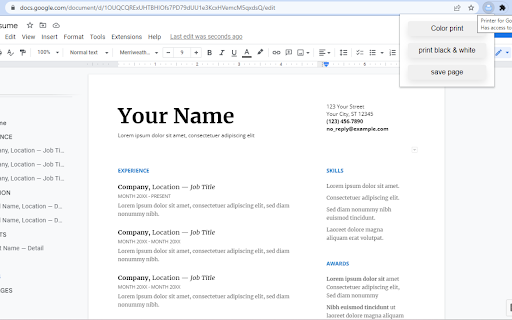

Prints the current page opened in Chrome with a single click. 1. 🆓 and very easy to operate. 2. Place a print 🖨 button inside your web browser. So you can easily print a page with one click. 3. Choose the style and the Print button design. 🖨(color, black and white) 4. Double-click on the print icon 🖨 to save the file in HTML or PDF, or to open the Options page. 1. Choose between the regular Print button or the Material Design Print button. 2. Or customize your own design Print button. 3. Supports both the TOUCH screen 🖥and DESKTOP screens with the mouse.🖱 4. Print button works for Windows, Mac, Linux, and Google Chromebooks. Our extension lets you print faster the opened tab on your current browser with one single click.

Just-One-Page-PDF: An awesome web page to PDF tool
Use Just-One-Page-PDF in just a few clicks. Easily capture entire webpage or selection area as high-quality PDF. Just One Page PDF(JOPP), save any web page, any area as high-quality PDF, like a screenshot tool, but save as PDF format. 1. one-page PDF for entire webpage 2. multiple-page PDF for entire webpage 3. support custom paper size, eg. window size, A4, A3, Letter and so on. 4. screenshot, but PDF format. 5. export PDF with multiple tabs at one time 6. Support exporting PDF of your selected region 7. Support for sending PDFs by email ## compare with the browser's build-in printing function 1. no print preview dialog, direct download 2. customize any page size as you want 3. multiple tabs to export PDF at one time 4. disable or enable print media as required 5. customize style before export PDF 6. supports printing by selecting nodes or selecting areas While surfing on the internet, you will always come across beautiful articles or web pages, which you will unconsciously want to collect. To collect these articles, you need some tools. Here I would like to share some of the extensions I have used before, the problems I encountered, in order to solve these problems, I developed a new extension suitable for article collection. I used to collect articles through some web clipper tools (such as evernote/onenote web clipper), but these tools have a big disadvantage, that is, they will rearrange the articles, and simple articles may not matter , but for some articles with rich expressiveness and complex typesetting, especially articles that use different web fonts to make the article more comfortable to read, it is difficult to maintain the reading experience of the original article by using these clipping tools. In order to solve this problem, I have tried some tools to save the article as a complete html, such as single page, save page we, etc. Although these tools are very powerful, I always feel that something is missing. There is no way to annotations, it is not very convenient to share with friends, and it is not ideal to print. At the same time, these articles saved as html are not good to be combined with some knowledge management tools. The more direct solution is to use the screenshot extension to take screenshots of the articles you want to collect. The advantage of the screenshot method is that it is easy to operate, easy to collect, and easy to share. However, when zooming in and zooming out the article that generates the image, the image will be distorted and blurred, and there is no better way to search for the text in the image. If the article is particularly long , the saved picture's filesize may also become very big. Finally, another solution that can be thought of is to save the article in PDF format. Articles saved as PDF can be a good solution for text editing and searching, and sharing has become very convenient. There are already a lot of PDF reading software on the market, and browsers themselves also provide PDF reading functions; at the same time, some advanced PDF reading software also provides PDF annotations, signatures, modifications, and other functions. Most of the knowledge management software is also more or less adapted to PDF reading. While saving to PDF is the best solution I can think of at the moment, the extensions that offer saving to PDF are very rudimentary in their functionality, and some of the tools require networking to the server to operate, which is even more difficult to achieve for some login authentication pages. The built-in PDF printing in the browser (ctrl+p), this is the most direct way to generate PDF, but the PDF generated by this function requires the author of the article to adapt the PDF style, so that the printed PDF will be more accurate and nice. Unfortunately, most of the current websites do not provide PDF print-friendly style adaptation, and the effect of the generated PDF may be very different from the effect of the browsed web page. At the same time, the browser's built-in PDF printing cannot maintain the original layout of the web page like a screenshot. The main reason is the size limit of the built-in PDF printing. ### third-party PDF extension Another option for saving PDFs is to use third-party extensions. The simpler PDF extension directly call the browser's built-in printing function to generate PDF files directly, without subsequent optimization processing, and the effect is basically the same as that of users directly using ctrl+p. The advanced PDF extensions will transmit the visited webpage address to a third-party server, and then, through the webpage address, operate on the server and save it as a PDF. But in this way, there is no way to save some web pages or articles that require login authentication. At the same time, because the fonts on the user's own computer may be different from the fonts on the third-party server, the generated PDF effect is still somewhat inconsistent. ### Myself PDF extension In order to meet the needs of collecting articles through PDF, I developed such a extension Just One Page PDF (JOPP). Support similar screenshot operations, select a specified area to save as a PDF, the most important thing is that this operation is performed on the client without any third-party services. JOPP generated PDF comes with an outline function, that is, JOPP supports the recognition of the title (H1, H2, H3, etc.) structure of the page, automatically converted into PDF bookmarks. JOPP also supports batch saving to PDF, so you no longer need to click print page by page. With one click, you can print all selected pages to PDF. For article collection, you can also use JOPP's sending email function to send the generated PDF articles to your own mailbox. For knowledge management tools that support email collection of articles, such as evernote/onenote, etc., you can directly send the PDF to the target mailbox.

Make the page printer friendly with customizable options Print Friendly and PDF any Webpage Save Paper and Ink now. This removes ads, navigation and junk before you press print. Pages are optimized for the ultimate reading experience. Edit Before saving to PDF/printing out the page Click-to-delete any content first to save on ink. Remove all images or individual images. Change the text size from larger to smaller. Generate PDFs for archiving, sharing, or saving. PDFs include clickable links, and source URL so you can continue to interact. * Preview the page * Save as PDF * Email Page * Remove Images and text you don't want * Change font size

Print Edit WE
Edit web pages prior to printing. Delete, hide and format elements. Edit text. Remove adverts and sidebars. Print Edit WE provides facilities to edit the contents of a web page prior to printing or saving as HTML or MHTML. Elements in the web page can be formatted, hidden or deleted and text can be edited or inserted. Unwanted content, such as adverts and sidebars, can easily be removed. Note, to use the Save As HTML feature, the Save Page WE extension (version 14.0 or later) must be installed and enabled. To start editing the page, click on the Print Edit WE button on the main toolbar, or select Print Edit WE > Start Editing on the context menu. A blue 'EDIT' (editing) badge will appear on the button. The 'Web Style' feature is disabled by default, so that the page displayed looks similar to how the page would look if printed normally. When the 'Web Style' feature is enabled, the page displayed will look similar to how the page looks during normal browsing. The 'Text Pieces' feature is disabled by default, so that only whole blocks of text can be selected. When the 'Text Pieces' feature is enabled, individual pieces of text can be selected and edited and line breaks are displayed. The 'View More' feature is disabled by default, so that only elements that are normally visible are displayed. When the 'View More' feature is enabled, elements that are normally invisible are also displayed and can be selected and edited. An edited web page can be saved as a single HTML file, which can be viewed or re-edited using Firefox or Chrome. An edited web page can also be saved as a MHTML file. Click the 'Preview' button to see how the edited web page will look when printed. Close the preview window to return to editing. The buttons available on the Print Edit WE toolbar are: • Select - select all or graphic or page-break elements, or re-select elements from previous command. • Deselect - deselect all currently selected elements. • Hide - hide currently selected elements. • Delete - delete currently selected elements. • Hide Except - hide all elements except those currently selected. • Delete Except - delete all elements except those currently selected, with varying restrictions. • Format - apply format properties to currently selected elements. • Text - edit a text piece or insert new text before or after element. • Undo - undo the action of previous edit command. • Undo All - undo the actions of all previous edit commands. • Save - save web page as a single HTML or MHTML file. • Text Pieces - allow selection and editing of individual text pieces. • View More - view invisible elements in the page. • Web Style - alternately remove or apply CSS print stylesheets. • Preview - open the Print Preview window. • Close - finish editing. • Tools - access to the Fix Page Breaks features and to the Options dialog. • Help - show the Help panel. The Delete Except button has three menu items: • Restricted - higher level elements retain their size and relative position. • Without Float - higher level elements retain their size and relative position, but cannot float right. • Unrestricted - higher level elements are resized and repositioned freely, but cannot float right. In this context, “higher level elements” means the ancestors (parent, grandparent, etc) of the currently selected elements. The mouse actions are: • Move - move highlight box to highlight element. • Click - select or deselect highlighted element. • Right-Click - inspect format properties for highlighted element. • Drag - select all elements within capture box. • Shift+Drag - select all graphic elements within capture box. • Ctrl+Drag - deselect all elements within capture box. Distributed under the GNU General Public License version 2. See LICENCE.txt file and http://www.gnu.org/licenses/

Print Button
Easily print any page with just one click! With Print Button addon, you can easily print any desired page with just one click from your browser's toolbar. Important features: a. Print any webpage with a click of a button (toolbar button). b. No settings or options to adjust. c. Supports light and dark themes. To report bugs, please fill the bug report form on the add-on's homepage (https://mybrowseraddon.com/print.html)
