
cnacodeielmmcaccijfpcepbbggogipa
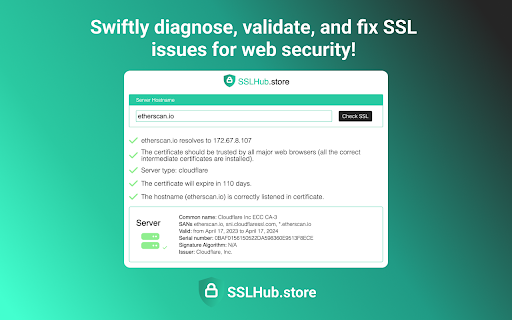
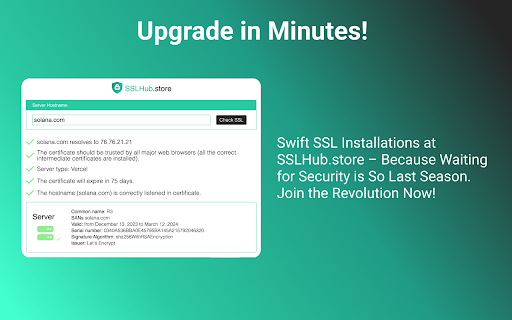
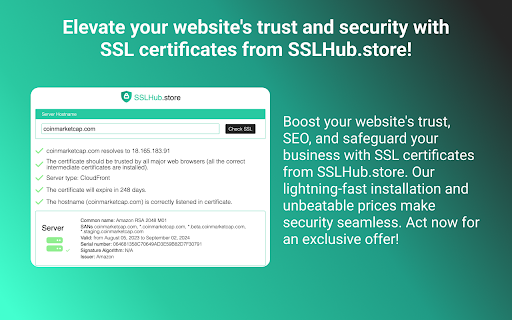
Swiftly diagnose, validate, and fix SSL issues for web security! Explore SSL Checker by SSLHub for rapid certificate analysis. SSL Checker by SSLHub.store - Boost Web Security! Ensure your website's SSL is in top-notch condition with SSL Checker by SSLHub.store. Our extension makes it easy to diagnose, validate, and fix SSL issues swiftly. Elevate your web security and provide a seamless browsing experience for your users. How It Works: - Click the Extension Icon: Locate and click on the SSL Checker icon in your Chrome extensions. - Enter Domain Name: Input the domain name you want to analyze. For example, try entering "sslhub.store." - Click "Check SSL": Hit the "Check SSL" button to initiate the analysis. What Our SSL Checker Reveals: * Domain Information: sslhub.store resolves to [IP Address]. * Certificate Trust: The certificate is trusted by all major web browsers, ensuring optimal user experience. * Server Details: The website is hosted on [Server Details]. * Certificate Expiry: The certificate will expire in [Days Remaining], allowing you to plan ahead for renewals. * Hostname Validation: The hostname (sslhub.store) is correctly listed in the certificate. * Server Certificate Details: * Common Name: [Common Name] * SANs: sslhub.store, www.sslhub.store * Validity: From [Valid From] to [Valid To] * Serial Number: [Serial Number] * Signature Algorithm: [Signature Algorithm] * Issuer: [Issuer] Make Web Security a Priority - Install SSL Checker by SSLHub.store Today! Optimize your SSL configuration, identify potential issues, and fortify your website's security. Download SSL Checker by SSLHub.store now and ensure a safe and secure browsing environment for your users.

OZZI: IOC Search
Gives a popup that will allow you to search via a single input either IP address, file HASH, URL, or port number across multiple free use OSINT platforms. It opens the results as new tabs in the background. Highlight an IOC on a webpage, right-click, select "Search OZZI for ''. * Select Preferred Sites to search your chosen OSINT sites * Select All Sites to search all OSINT sites * Select IP,IPV6,HASH,URL,PORT to search a specific site for that type of IOC 1. Launch extension - click icon or keyboard shortcut: Ctrl + Shift + F 2. Type or paste the IOC: a. IP address (IPv4 or IPv6) b. File HASH (MD5, SHA1, or SHA256) c. URL (including defanged URLs) d. Port Number 3. Hit Enter or click Search 4. The extension should launch relevant OSINT sources in background tabs, depending on your input type. ======= Setup ======= You now have the option to select the OSINT sites you would like to search for each IOC type. NOTE: You will have to select OSINT sites you want to use before the extension will start giving you results. 1. Launch the extension and click the gear icon next to the search button. 2. Check the OSINT sites you would like to use. 3. You can also select which theme you would like to use for the extension. 4. Hit save at the bottom when done selecting. You should get a message that your settings have been saved. OSINT Sources - HASH ============== VirusTotal Hybrid Analysis IBM X-Force Cisco Talos - SHA256 ONLY AlienVault Threatminer URLHaus - MD5 and SHA256 ONLY

CheckMyHTTPS
CheckMyHTTPS ensures that your secured WEB connections (HTTPS) are not intercepted (neither decrypted, nor listened, nor modified). When browsing on secured sites ("https://..." websites), you can check the security status by clicking on the extension icon. - The icon is green : your connection is not compromised; - The icon is red : your connection is considered very risky (hijacked, modified, listened); - The icon is gray : the verification is impossible (check server is unreachable, network error); - The icon is black : the verification is in progress. Technical details : Normally, before encrypting an HTTPS connection, a secure website must prove its identity to your browser by sending it its security certificate. This certificate can be considered as an identity card issued by higher authorities (Certificate Authorities). There are several techniques of usurpation based on false certificates (false identity cards) or homographers (false names) to make you believe that a pirate site is the legitimate site you think you are visiting. These techniques allow pirate sites to retrieve your private information. CheckMyHTTPS allows you to detect this type of practice, which can be implemented on open networks (WiFi in hotels, conference centers, stations, etc.) or even within your company via its firewall (SSL inspection). To detect this, the extension compares the certificate of the visited site that is received by your browser with the same certificate retrieved by an external check server located on the Internet. If the certificates differ, the identity of the server can be considered as usurped (red icon). Respect for privacy : The CheckMyHTTPS extension requires to send only two parameters to the check server : - The domain name of the visited website; - The IP address of the visited website. You have free choice regarding the website to check. Moreover, we give you the possibility to be free regarding the check server as you can make and host your own. All explanations are detailed on the https://checkmyhttps.net project website.

SSL Level Light
Displays SSL certificate type with color icons to help identify potentially risky sites using free certificates. 📌 Overview SSL Level Light is a Chrome extension that automatically analyzes the type and level of SSL certificate used by the website you're visiting, and intuitively displays it as a color-coded icon (traffic light) next to the address bar. It helps users easily identify websites using free SSL certificates and prevent potential access to phishing or malicious pages. Instantly recognize the website's security level via an icon next to the address bar ⚠ Security Awareness Feature Browser padlock icons only indicate the existence of an SSL certificate, without revealing the trust level or issuer, making it difficult for users to accurately assess security. Recently, phishing websites have been increasingly using free SSL certificates. According to a 2021 report by PhishLabs, 83% of phishing sites used Domain Validated (DV) SSL certificates. In 2022, 90.5% of phishing websites were using SSL. The 2023 APWG report confirms this trend, showing that the majority of phishing sites now use valid SSL certificates. In short, the presence of an SSL certificate alone is no longer a reliable indicator of a website’s trustworthiness. SSL Level Light addresses this issue by visually indicating the level of SSL certificate used, helping users make better-informed security decisions. For example, when accessing a site using a free certificate, it displays a yellow warning to alert the user. 🧩 Crowdsourced Risk Evaluation (New in v1.6) - Users can rate each site as “Safe” or “Dangerous.” - All ratings are securely stored and aggregated using DB. - If a site receives 3 or more “Danger” votes than “Safe” votes, it will automatically display a red light. - Sites previously reported as malicious and registered in the blacklist also show a red icon. - Ratings are anonymous and limited to one per user per site. 🔔 Warning Slide Popup (Enhanced in v1.6) - A slide-in warning popup appears when visiting yellow, red, or gray sites. - The popup displays: “This site uses a free SSL certificate. Caution is advised.” - A summary of community ratings, e.g. 🚨 Danger: 3 votes / ✅ Safe: 1 vote - The position, language, and visibility of the popup can be fully customized in the settings page. 🔄 Updated Features (v1.6) ✅ User-based safe/danger rating system ✅ Global risk aggregation ✅ Automatic red light for 3+ danger votes ✅ Improved warning slide popup design ✅ Support for 12 languages with auto-detection ✅ Configurable popup position, language, and visibility ✅ Multi-language icon tooltips 📢 Sponsored by NewSecurity.org “Seeing the risk is the beginning of safety.”

TLS/SSL checker and reminder - ElevenGuard
Monitor TLS/SSL certificate expiration and get notified via email or Slack. One-click TLS/SSL certificate info such as expiration date and certificate authority (CA). Elevenguard.com Chrome Extension is a SSL checker to avoid red lights in production. You can also add reminders and be notified via email/Slack when a certain TLS/SSL certificate is about to expire. ⚠ Be updated on SSL certs expiration before errors start happening. SSL certificates are not valid forever. They expire. That means that every website needs to renew or replace its SSL certificate. So, what happens when your SSL certificate expires? It makes your site/services unreachable. That is essentially a death warrant for your site’s traffic, sales or whatever metric or KPI you value. ⚠ No more red lights with SSL certificates. Don't let cert renewal compromise your HTTPS availability. More often than not, script-generated haproxy configuration fails to pick new certificates and will put a red light on production status. Imagine that in a very high traffic web site and in your career.
