
ceocjcfbmldpcgnfklmipgnpoabhfela

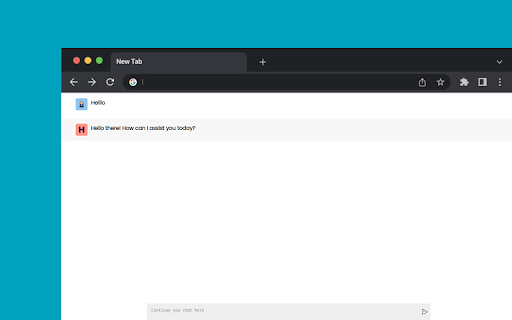

With Helloii, you don't have to worry about typing keywords into a search bar or scrolling through countless pages of search results. Instead, you can simply chat with ChatGPT and ask it questions in a natural way you search google on chrome

Smooth Japanese fontization
Replace with smooth Japanese font. Improve the visibility of the font.

YouTube Full Title For Videos
This extension shows the headlines of the video entirely without hiding them partially, as by default. This extension shows the headlines of the video entirely without hiding them partially, as by default. It add a CSS that change height of title, so it is easier to use YouTube.com, because you can see all title and don't need to hover on a title to see it all. The plugin doesn't have any JS, just simple CSS.

DetailedTime
YouTube動画の公開時刻を表示するやつ ◆どんな機能? YouTube動画の公開時刻を表示します。 ◆使い方 動画タイトルの横に「詳細」の文字が出るのでそれをクリックしてください。 ◆注意事項 ※ライブ配信の場合は配信開始時刻になります。 ※完璧な動作保証はできません。ご利用は自己責任で。 ※ブラウザの横幅が狭い場合・動画タイトルが長すぎる場合には「詳細」の文字が出ないことがあります。 ◆他の機能 YouTube用の自作拡張まとめ https://null.style/app ◆不具合を見つけたら 作者Twitter(@nulltypo)までご連絡お願いします。レビューには回答できません。 ◆免責事項 このChrome拡張によりいかなる損失や損害などが発生しても責任を負いかねます。ご了承ください。

Bookmark Bar Switcher
An extension allowing you to use more than one Bookmarks Bar. All available bookmark bars will show up in the extension popup. To switch between them, just click the one you would like to switch to. Alternatively, you can also switch using keyboard shortcuts. The default bindings are: - Ctrl + UpArrow/DownArrow: Switch to the next or previous bookmark bar. - Ctrl + Shift + 1: Switch to the first bookmark bar. - Ctrl + Shift + 2: Switch to the second bookmark bar. You can add, rename, reorder and remove bookmark bars from within the extension: - Add: Type the name of your new bar into the input field at the bottom and confirm with `Enter` or by clicking the PLUS-button. - Edit: Either use the EDIT-button next to the bar you want to modify or double-click it. Type the new name and confirm with `Enter` or by clicking the SAVE-button. - Reorder: Drag the bookmark bar to its desired position with the mouse and drop it. - Remove: Enter the EDIT mode and click the DELETE button. The extension exchanges the bookmarks inside the current bookmark bar with the ones within a chosen folder in the "Bookmark Bars" directory. The current bookmark bar will be backed up to a folder in "Bookmark Bars". The current bookmark bar will be called ***"My first bookmark bar 🚀"*** when you first install the extension.
