
cejddnmmppcemhgenpcacdipichjjeme

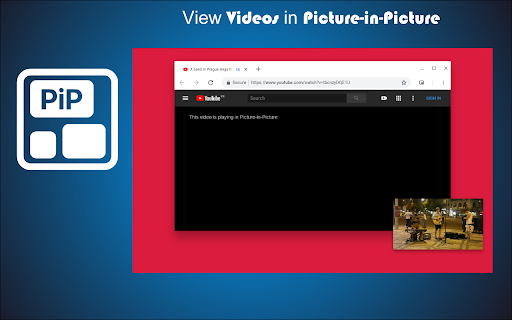
Pop out video into a PIP Chrome Window. Works on all videos and websites. Watch video using Picture-in-Picture. Picture-in-Picture (PiP) allows you to watch videos in a floating window (always on top of other windows) 📌 so you can keep an eye on what you’re watching while interacting with other sites, or applications 📱 Supports video player on Youtube, Twitch, Mixer, Facebook and many other platforms and sites 🔧 Click on the extension icon to reduce the video player on YouTube and other sites 💎 This window will play videos on all pages of the browser. ★ Find a video and start it playing 🔔 ★ Click on the extension icon to reduce the video player on YouTube and other sites 📣 ★ Select the Floating Picture in Picture mode (PIP) and you're good to go 🎲 ★ Note: while you are free to browse other sites as the video plays in a pop-out, you must keep the original tab open. Picture-in-Picture Plus is a powerful tool to watch video on mini video player for all sites ✅ ✔ Now works for Disney Plus, HBO Max, Netflix, Amazon Prime, Apple TV+, ... ✔ Picture-in-Picture is a lite addon that gives you access to video on all site with just one click 🔥 ✔ Picture-in-Picture for all is extension that is developed and maintained independently 💡 ✔ Picture-in-Picture just makes it easy to access video in PIP for all video sites 💬 💎 Building Apps and Extensions for Google Chrome and Android 🔥📣 📔 Available on the product page: https://jitt.wwevents.fun/project/pip-picture-in-picture-plus/#changelog By installing this product you agree to our privacy policy & terms of service: https://jitt.wwevents.fun/privacy-policy/ You may consult the list of permissions and the reason why they are required on the product page: https://jitt.wwevents.fun/project/pip-picture-in-picture-plus/#permissions “notifications” – Used to send desktop notification. For example when a new message arrive or App is updated. “contextMenus” – Allow to add more settings when right click in the App icon in the browser toolbar and browser context menu. “storage” – Used to save settings on your local computer. “scripting” – Used to be able to insert JS or CSS on the required host/domains. “system.display” – Used to detect the display size and position the Extension window. “unlimitedStorage” – Storage is limited to 5MB of data that may not be enough to store all configs. “host_permissions” – Permission to access to some hosts/domains that we must modify in order to provide the desired functionality detailed in the functionality. It also allows that you can share content (links or text) from other pages directly to inside the App. Also used to allow intercommunication with other WWEvents Apps (i.e. Emojis). “activeTab” – Permission to access the window that the extension is running and is show to the user. “tabs” – Permission required to query all the active tabs in order to put the Picture in Picture on the requested tab. “all_urls” – We cannot predict ahead of time witch videos deployed on hosts/domains the user want to PiP. The extension is capable to PiP any Html5 video on any Webpage. This information is also available inside the App: Options -> About

Picture-in-Picture Anything - Place Any Element on Top of your screen
An extension that allows you to use Picture-in-Picture mode on any element of any website. This extension allows you to place any web page element into an Always-on-Top window, similar to video Picture-in-Picture mode, but now for any element. It utilizes a new Document Picture-in-Picture API (https://developer.chrome.com/docs/web-platform/document-picture-in-picture) and works natively in Chrome, Edge, and Opera browsers for desktop. Whether you want to have a video with proper controls and subtitles on top of your screen or an article that you are taking inspiration from before your eyes, this extension will help you. Press a keyboard shortcut (Ctrl-Shift-P) or Click on the extension icon in the toolbar or Right-click on the page and select "Picture-in-Picture Anything" to open the Element Selection Overlay Select an element by clicking the left mouse button on it. Holding a Shift button when selecting an element will open a Precise Selection Panel. There, you can navigate the element tree and select precisely an element you want. Pressing ESC before selecting an element will close the window. Sometimes, you may want to play around with the element you choose to achieve the desired effect (selecting either a parent or child element may help you if an element doesn't behave correctly). Please let me know if something needs to be fixed or if you have ideas for improvement.

Picture in Picture | PiP | Floating Player for Youtube
Watch video in a floating PiP window. Picture in Picture for YouTube, Netflix & all sites. Always on top. Watch any video in a floating video player — always on top, always visible. Picture in Picture (PiP) pops out video from any website into a resizable floating window that stays above all tabs and apps while you browse, work, or multitask. How it works Click the extension icon while a video is playing. The video pops out into a floating PiP window. Move it anywhere, resize it, and keep watching while you switch tabs or work in other apps. Features ✅ Floating video window — always on top of other windows ✅ Works on every website with an HTML5 video player ✅ One-click activation from the Chrome toolbar ✅ Reposition and resize the floating player freely ✅ PiP mode stays active across all tabs ✅ Keyboard shortcut: Alt+P (⌥+P on Mac) Does Picture in Picture work on YouTube? Yes. Click the icon on any YouTube video to open it in a floating PiP window instantly. Does PiP work on Netflix? Yes. Works on Netflix, Disney+, Prime Video, and all major streaming platforms. How do I enable Picture in Picture mode? Install the extension, go to any page with a video, click the PiP icon in your Chrome toolbar. Done. Can I resize and move the floating window? Yes. Drag to reposition, pull edges to resize. Does the floating player stay visible when I switch tabs? Yes. The PiP window stays on top of all other windows across every tab and app. What is the keyboard shortcut for Picture in Picture? Alt+P on Windows/Linux, ⌥+P on macOS.

PiP Pro: Picture-in-Picture productivity tools
Boost your productivity, maximize your screen real estate, and stop tab-switching with PiP Pro - the ultimate Picture-in-Picture productivity extension for Chrome! PiP Pro is a complete productivity toolkit that lets you Picture-in-Picture ANYTHING. From full browser tabs to custom-selected sections, native video PiP, floating notes, task management, and a Pomodoro focus timer - PiP Pro keeps your essential tools always visible while you work in other tabs. ▶️ Universal PiP - Float ANY Content, Not Just Videos! • Full Screen PiP: Capture entire browser windows including websites, PDFs, documents, and web apps • Smart Video Detection: Automatically detects videos on the page and lets you PiP them with one click - perfect for YouTube, Twitch, Netflix, and any video site • Video/Tab Toggle: Choose between native video PiP (better quality, lower resource usage) or full tab capture based on your needs • Custom Section Selection: Choose exactly what portion of the screen you want to keep in view at any aspect ratio - perfect for monitoring dashboards, spreadsheets, or specific content areas 📝 Floating Notes • Take quick notes without switching tabs or windows • Access your notes in an always-on-top floating PiP window • Clean, distraction-free minimal interface • Automatic timestamps for better organization • Pro: Unlimited notes with cross-device sync ✅ Floating Todos & Task Manager • Manage your tasks in a floating always-visible window • Check off tasks without leaving your current work • See completed tasks and clear them with one click • Pro: Add due dates, recurring tasks (daily/weekly/monthly), and unlimited todos with cross-device sync • Celebration animation when you complete all your tasks! ⏱️ Pomodoro Focus Timer • Built-in productivity timer using the proven Pomodoro Technique • Beautiful countdown display that stays on top while you work • Automatic session tracking and work/break transitions • Desktop notifications when sessions complete • Pro: Customize focus/break intervals, view detailed stats & history, sync across devices 💡 Perfect For: 📚 Students: Follow video tutorials while coding, reference lecture notes while taking exams, watch lectures in PiP 💼 Remote Workers: Take meeting notes, track tasks, stay focused with Pomodoro timer 📈 Day Traders: Monitor live stock tickers, charts, or news while researching ✍️ Writers & Researchers: Reference documents while writing emails, papers, or reports 👨💻 Developers: Watch coding tutorials in PiP while coding, monitor logs, track task lists 🎮 Streamers: Keep chat or alerts visible as an overlay floating window while gaming 📊 Analysts: Monitor dashboards, spreadsheets, or data feeds while multitasking 🎥 Video Watchers: PiP any video from YouTube, Twitch, Netflix, or any streaming site 🏠 Anyone with limited screen space who needs powerful multitasking tools 🚀 Why Choose PiP Pro? ✅ Smart Video PiP - Automatically detects and PiPs videos from any website with one click ✅ Beyond Video PiP - Unlike other PiP extensions limited to video content, PiP Pro empowers you to float ANY web content. Include captions! ✅ All-in-One Productivity - Notes, Todos, Timer, and PiP in one lightweight extension ✅ Always On Top - Your floating overlay windows stay visible no matter what you're working on ✅ Works Everywhere - Seamless integration across all websites, PDFs, web apps, YouTube, Netflix, Twitch, and more ✅ Generous Free Tier - Full Screen PiP unlimited, Video PiP unlimited, 5 notes, 10 todos, standard Pomodoro timer - completely free forever 🔒 Privacy & Performance: PiP Pro respects your privacy and system resources. The extension is optimized for smooth performance without compromising your browsing speed. I do NOT collect or sell any data - your notes, todos, and usage stay private. 🛠️ Continuous Improvement: PiP Pro is an independent developer-run project, and I (the developer) am committed to constant improvement. I value user feedback and actively incorporate suggestions to make PiP Pro the best productivity tool it can be. 📬 Support & Feedback: For bug reports, feature requests, or questions, reach out to @dc1b3l on Twitter/X. Your input is invaluable in shaping the future of PiP Pro! Love PiP Pro? Please rate it in the Chrome Web Store - it helps other users discover this productivity tool! Take control of your screen space and supercharge your productivity - Add PiP Pro to Chrome now! What's New in PiP Pro v1.1.0 - 01/26/2026 🎬 🎥 New Feature: Smart Video PiP Instantly PiP any video on the page with automatic detection! • Smart Video Detection: Automatically finds videos on YouTube, Netflix, Twitch, and any website • One-Click Video PiP: Toggle between Video mode and Full Tab mode with the new mode selector • Auto-Select: Video mode is automatically selected when videos are detected on the page • Native Quality: Uses browser's native PiP for better video quality and lower CPU usage • Works Everywhere: YouTube, Twitch, Netflix, Vimeo, educational sites, and any page with video 🔄 Renamed: Full Tab PiP → Full Screen PiP • Clearer naming to distinguish from video-specific PiP • Same great functionality for capturing entire tabs 🛠️ Improvements • Better extension state management after PiP exits • Improved content script injection reliability • Fixed edge cases with extension reload What's New in PiP Pro v1.0.0 - 01/16/2026 🎉 🚀 PiP Pro 1.0 is here! Our biggest update yet with a complete productivity suite: ✅ New Feature: Floating Todos Manage your tasks in an always-on-top Picture-in-Picture window! • Create, complete, and delete tasks without leaving your current tab • Collapsible completed section with one-click clear • Beautiful celebration animation when you finish all your tasks • Pro: Due dates with smart relative display (Today, Tomorrow, Overdue) • Pro: Recurring tasks - daily, weekly, or monthly • Pro: Unlimited todos with cross-device sync ⏱️ New Feature: Pomodoro Focus Timer Stay focused with our built-in productivity timer! • Classic Pomodoro technique: 25 min focus / 5 min break / 15 min long break • Beautiful gradient countdown display • Session tracking with automatic work/break transitions • Desktop notifications when sessions complete • Works even when PiP window is closed • Pro: Customize all intervals (1-120 minutes) • Pro: Detailed focus stats and full history • Pro: Sync settings and stats across devices 💎 New: Pro Tier with Premium Features • Unlimited custom section PiP (free tier: 15 min/day) • Unlimited notes with cross-device sync • Unlimited todos with due dates, recurring tasks, and sync • Custom timer intervals with full stats and sync • Support at $1.99/month or $9.99 lifetime 🔄 Cross-Device Sync (Pro) Your notes, todos, and timer settings now sync across all your Chrome browsers automatically. 🎨 UI Improvements • Redesigned popup with clear Free/Pro feature sections • New navigation between PiP tools • Smooth animations throughout • Aurora celebration effects 🛠️ Under the Hood • Improved performance and reliability • Better error handling • Daily usage reset system • Background timer support with Chrome alarms • Create and edit notes in a floating PiP window • Clean, minimal interface • Quick access scrollable notes list • Automatic date stamping • Easy deletion and management Reach out to me on twitter for any comments or ideas! (@dc1b3l)

PiP (Picture in picture)
Watch videos in a floating window Picture in Picture (PIP) outside the browser window or on top of any other application. Enhance your video viewing experience with Picture in Picture Have you ever wanted to keep watching your favorite videos while doing something else? With Picture in Picture for Chrome, you can. This simple extension lets you keep your video in a small floating window that stays on top of other tabs and apps. You can move it anywhere on your screen and resize it the way you like. No more pausing to check emails or switching between tabs. Just click the Picture in Picture icon, and your video will pop out so you can continue watching while you work, browse, or chat. It only takes a few seconds to install. Go to the Chrome Web Store, search for Picture in Picture, and click Add to Chrome. Once installed, you will see the icon in your toolbar for quick access. Picture in Picture makes multitasking simple. Watch your videos without interruptions and stay productive at the same time.
