
bnacincmbaknlbegecpioobkfgejlojp


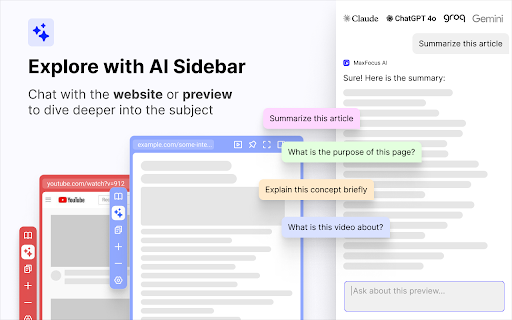
Preview links directly from your current tab and maintain your concentration. MaxFocus is perfect for smoothly navigating through your social media and news feeds, watching videos without interruptions, and reading articles without cluttering your browser with multiple tabs. It's an ideal tool for students and professionals who must focus on their tasks. 1. Powerful link previews • Preview in popup: Instantly view any link in a dedicated popup window without leaving your current page • Move to sidebar: Easily transfer any preview from the popup to a sidebar for a convenient split-screen experience • Customizable options: — Choose how to open or close previews: drag, long click, hover, or with keyboard shortcuts — Customize your popup color themes (PRO Feature) — And many more! 2. AI Sidebar & assistant • Chat with AI: Get instant answers and summaries right on your viewing webpage. The AI understands the content and delivers relevant information • Auto Prompts: Receive helpful suggestions and prompts tailored to the page you're interacting with • YouTube AI summaries: Make summaries of your favorite videos. We'll transcribe all the videos for you 3. Stay focused and organized • Reader view: Convert any webpage to a clean, distraction-free format for easy reading. Dark Mode is available for a comfortable reading experience at night • Video focus mode: Watch videos without sidebars or click-away temptations. Just the video, nothing else • Spotlight: Press Alt+Z on any page to access your favorite links. Click a link to open it in a popup for easy viewing 4. Security • Scam detector: Browse with confidence — get alerts about potential threats like malware, phishing, or ransomware • UTM tags remover: Preview links without the hassle of UTM tags • Data privacy: Your privacy is our priority. We don’t collect any of your data. Frequently asked questions: • Is MaxFocus free to use? — MaxFocus provides a limited free plan. For unlimited access, consider upgrading to a PRO Plan • What features are exclusive to the PRO Plan? — PRO users enjoy benefits like AI-powered assistance, scam detection, advanced theme customization, and unlimited link previews • Do I need an OpenAI account for the AI features? — No, you don’t need an OpenAI account. Upgrade to a MaxFocus PRO plan to unlock the AI capabilities • Will it work on all websites? — MaxFocus is compatible with most websites, providing link previews, AI support, and more across various platforms Contact us: If you have any questions or suggestions, feel free to email us at hello@maxfoc.us No matter what you need — whether it's Notion link previews, link previews in Google search, an Arc alternative, student productivity tools, help to manage a ton of tabs or simply a better browsing experience — try MaxFocus today!

Side Copilot - AI Agent: Research, Organize & Automate | Claude Assistant
AI Agent takes action for you: manage tabs & windows, automate tasks, summarize & research. Arc-style vertical tabs sidebar. Side Copilot – Vertical Tabs, Spaces & AI Agent for Chrome Alternative to Arc Sidebar, Dia's Sidebar, Edge Vertical Tabs, Brave vertical tabs, Vivaldi Window Panel, and Zen Browser sidebar. Side Copilot is an Arc-style vertical tabs sidebar for Chrome with an AI agent that helps you organize tabs, manage windows, summarize content, and automate browsing workflows. If Chrome’s default tab bar feels messy, Side Copilot gives you a cleaner way to work. Move tabs into a sidebar, organize them into Spaces, sync them across browsers, and use AI to take action on your browsing context. Research, summarize, organize, and take action, browse less, more action. Side Copilot works inside your browser side panel to help you manage tabs and windows, group related pages, search browsing history, summarize open tabs, chat with files, and automate repetitive browser workflows. Chrome still lacks a native vertical tabs experience that feels complete. Side Copilot fills that gap with a fast, focused sidebar designed for people who live with dozens of tabs open. Whether you are a student, marketer, developer, creator, designer, or researcher, Side Copilot helps you reduce tab clutter and stay in control of your workspace. • 🧭 Vertical Tabs Sidebar for Chrome View and manage your tabs in a clean vertical layout that is easier to scan than the default horizontal tab bar. • 🗂️ Spaces for Tab Organization Create separate Spaces for work, study, research, shopping, reading, or side projects. Keep different contexts organized without losing your place. • 💾 Save, Restore, and Reorder Tabs Save sessions, restore tabs and tab groups, and reorder everything with drag and drop. • ☁️ Sync Across Browsers and Devices Sign in once to sync your Spaces across Chrome and compatible browsers, so your tabs stay available wherever you work. • 🔎 Fuzzy Search for Tabs and Spaces Find the tab, group, or Space you need in seconds, even when you have a large number of tabs open. • 🧹 Suspend Tabs to Save Memory Reduce browser memory usage by suspending inactive tabs when you need a lighter workspace. • 📚 Tab Group Management Manage tab groups more efficiently from the sidebar, including grouping, moving, restoring, and organizing related tabs. • 🔗 Group Guard and Auto Grouping Automatically group tabs based on URL rules, domain patterns, or custom categories. • 💬 AI Copilot Chat Mode Chat with your current page or open tabs. Ask Side Copilot to summarize, explain, compare, or organize what you are browsing. • 🤖 AI Copilot Agent Mode Go beyond chat. Ask AI to take action for you, such as managing tabs, grouping windows, searching browser history, and helping with browsing workflows. • 📄 Chat with Files Talk with PDFs, documents, images, and other files directly from your browser workflow. • 📺 Chat with YouTube Summarize videos, extract key points, and understand content faster without switching tools. • 🌙 Dark Mode Use Side Copilot comfortably day or night with dark mode support. • 📦 Backup Options Export your session data as JSON and keep a reliable backup of your Spaces. 🗂️ Built for Heavy Tab Users Side Copilot is especially useful if you: - want vertical tabs in Chrome - miss Arc’s sidebar on Chrome - need a better tab manager for research and multitasking - want to organize tabs into Spaces - need browser sync across devices - want AI to help summarize, research, and automate browsing tasks Default Chrome tabs get crowded fast. Titles shrink, groups become hard to scan, and switching context becomes frustrating. Side Copilot gives you: - better tab visibility - easier tab switching - cleaner session management - stronger focus with Spaces - faster research workflows with AI - a more modern sidebar browsing experience If you like the idea of Arc Browser’s sidebar, Edge vertical tabs, Brave vertical tabs, Vivaldi’s Window Panel, or Zen Browser’s sidebar, Side Copilot brings that experience to Chrome, with added AI tools for browsing, research, and organization. 💅 Made for modern browsing So you can do more than store tabs. You can actually work with them. Try Side Copilot if you want a better Chrome sidebar for vertical tabs, smarter tab management, and an AI agent that helps you browse with less chaos and more control.

LightWindow: link preview, browser-in-browser
While browsing the web — reading, clicking links, searching — it’s easy to lose track and open dozens of tabs. A search results page has 10 links, and you open each one in a new tab. Then every page you open has more links — and you open even more tabs. Soon your browser is overflowing with dozens or even hundreds of open tabs. You lose focus, forget why you opened a page, and can’t even tell where you are anymore. But the problem isn't you — it's the outdated 2D browsing model. 🌐 How 3D browsing helps solve the too many tabs problem While traditional solutions like tab managers still operate within the flat 2D model, LightWindow introduces a fundamentally new approach: adding a third dimension to viewing pages. Instead of opening every link in a new tab, you can open a floating preview window directly over the current page to take a quick look. Clicking a link inside this preview opens another nested window. This creates a tree of views — all inside a single tab. Preview windows don’t get lost, don’t clutter the interface, and most importantly — don’t overload your tab bar. You stay in the same flow and can quickly return to where you were. This reduces the pressure on the second dimension — tabs — keeping only the most essential pages there. 🧠 Why the third dimension is the logical next step To understand this, let’s recall the evolution of browsing: — In the 1D web, clicking a link replaced the current page. Navigation was linear — forward/back only. — In the 2D web, tabs arrived — a breakthrough that allowed multiple pages to stay open at once. But now the second dimension is overloaded. Countless tabs are breaking context and structure. It's time to go beyond the flat tab system. 3D browsing introduces depth and clarity. LightWindow brings this new model to life with a simple and intuitive hierarchy of views. 🚀 The result You’ll open fewer tabs — not because you’re trying to, but because now you finally have an alternative. Links no longer break your flow — they become part of it. ✨ Bonus features — Built-in address bar with autocomplete in every preview window — Page translation directly inside preview windows — Remembers window size and position for each nesting level — Customizable open methods: Ctrl + middle-click, Alt + click, hold-to-preview

Hoverflow
Hover to preview any link, without leaving your tab. The fastest and easiest way to browse wikis, docs, the web. Nested: Preview links within links, find information without breaking flow. Fast: Loads the mobile version of websites for fast and focused browsing. Secure: Disabled by default, enabled where you want it. One-click enable on any tab, click again for granular settings. Works great with Wikipedia! We've automatically enabled it there for you to try out, but feel free turn it off anytime via the popup menu.

Arc Peek: Link preview
"Arc Peek" allows users to preview links, similar to the functionality in the Arc browser. 1. Preview links in current sliding window. 2. Use shift + click link or drag link to open links for preview. 3. Click outside the preview window to close it. 4. Click the expand button to open in a new tab. Some websites may not function properly due to service workers' onfetch handlers, while others disable drag or Shift + Click events, limiting options for link previews. Additionally, links might fail when redirecting to sites with strict Content Security Policies (CSP).
