
bhdnlmmgiplmbcdmkkdfplenecpegfno


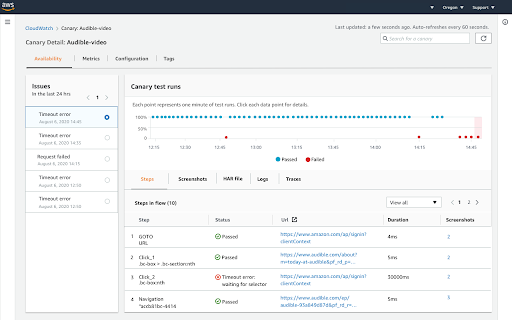
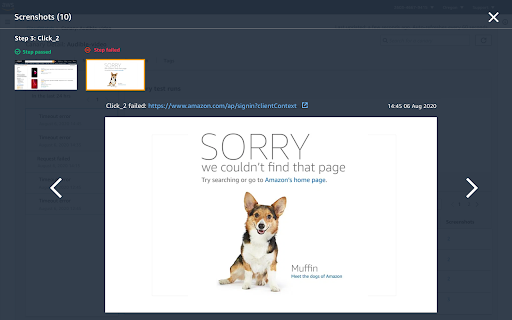
Record user actions and generate CloudWatch Synthetics Canary scripts. Use the CloudWatch Synthetics Recorder extension to automatically record the type and click actions that you take on your web site and convert these actions to a Node.js script. You can then use the script to create a canary in Amazon Cloudwatch Synthetics. CloudWatch Synthetics canaries are configurable scripts that run on a schedule to monitor your endpoints and APIs. Canaries can follow the same routes and perform the same actions as a customer, which makes it possible for you to continually verify your customer experience even when you don't have any customer traffic on your applications. For more information about CloudWatch Synthetics, see https://docs.aws.amazon.com/AmazonCloudWatch/latest/monitoring/CloudWatch_Synthetics_Canaries.html. By default this extension will have access to record any webpage. If you wish to scope down these permissions to only allow specific webpages to be recorded, refer to the following Chrome Web Store support page: https://support.google.com/chrome_webstore/answer/2664769. By installing or using this extension, you agree that your installation and use of this extension is governed by https://aws.amazon.com/agreement/ or other agreement between you and AWS governing your use of our services. Credits: CloudWatch Synthetics Recorder is based on the Headless recorder(https://github.com/checkly/headless-recorder).

BlazeMeter | The Continuous Testing Platform
Record Selenium and HTTP traffic to create a load and functional tests in less than 10 minutes (Apache JMeter Compatible). The BlazeMeter Chrome extension enables you to - Record. Upload. Run. The Chrome extension records all HTTP/S requests and actual user interactions that your browser sends. It creates a JMeter or Selenium script, and automatically uploads it to BlazeMeter.com, where you can execute tests with a single click. No need to install JMeter nor Selenium to record or run GUI Functional, API Functional, or Performance tests, the Chrome extension will create the JMeter (JMX) and Taurus Selenium (YAML) scripts automatically. The extension will also allow you to debug and test your recorded Selenium session on your local Chrome browser. By using JMeter locally, you can debug and enhance the JMX file created by the Chrome Extension to ensure your script is ready to go. WHAT'S NEW: https://guide.blazemeter.com/hc/en-us/articles/115004970329-Chrome-Extension-Changelog-Chrome-Extension-Changelog Features - Record test scenarios without scripting experience - Record all HTTP/S requests made by your browser - Record user GUI actions - Add assertions to your Selenium steps - Add transaction labels (for JMeter and Selenium) during recording - Support for shadow locators (Lightning Web Components) - Apache JMeter Compatible - Taurus Selenium Compatible - Run tests without installing test scripting applications - Run Performance tests for up to 3,000,000 concurrent users - Run load tests in under ten minutes - Run API Functional Tests - Run GUI Functional Tests - Run Selenium tests and JMeter tests side by side to get the best of both worlds - Debug scripts - If you want to record transactions, Chrome version 58 or newer is required - Recommended minimum version of Chrome is 58 - For certain features (e.g. converting to JMX, Scriptless Scenario Editor), a free BlazeMeter.com account is required

SAML Chrome Panel
Extends the Developer Tools, adding support for SAML Requests and Responses to be displayed in the Developer Tools window This is an Open Source SAML debugger for Chrome. It operates as another panel in the Chrome Developer Tools section, which monitors the traffic in the current active tab. This panel is trying to replicate what the Firefox version of SAML Tracer does as there wasn't a good enough one (or any) for Chrome at the time of writing this. GitHub Repo: https://github.com/milton-lai/saml-chrome-panel Feel free to branch and help make this even better! It is designed to display all network traffic, along with the request and response data. If there is a SAML request or response, then it will grab the message, format it nicely and show it to you in another tab. Updates: - Set links to open in the same browser -- There is a new feature to "Scrub" the links in the current page. Basically, it will update all anchor tags and set their target attribute to equal '_self'. This should address the issue of having SAML transactions opening up in new tabs and such. This is the best implementation I could think of as I'm unable to listen to all traffic on all tabs. - Import and export the network traffic. -- It imports and exports the traffic on the browser in a JSON format. - Toggle showing SAML traffic. Please note that at the moment, I've only looked at OpenAM Redirect and POST SAML transactions (as that is what I've got access to). If there are others which are working, please let me know. If there are SSO frameworks that are not working, then also please let me know and I'll try to get it working (e.g. SOAP). Thanks to @jasonwzs (https://github.com/jasonwzs) and @AlmogBaku (https://github.com/AlmogBaku) for contributing Update (2020-07-18): -- Updated internal libraries. -- Reduced extension size. -- Minor code cleanup. -- Increased SAML font size. Update (2017-11-19): -- Added toggle limit of 500 network requests, to keep memory footprint smaller. -- Added Search option for the SAML tab.

Extension for AWS SSO
This extension is for AWS Single Sign-On (AWS SSO). This extension is for AWS IAM Identity Center (The old name is AWS SSO). As for now, this extension is providing only following functions. You will see what am I using Account Name and Permission Set for current console at AWS console's header, AWS console header's color will almost be red if account name has 'Production' in it, and to bring favorite accounts to the top on the SSO login page. (You can customize header colors using regular expressions for account names on the extension option page. Favorites too.) Source code is here https://github.com/yaggytter/chrome-extension-awssso

Amazon Quick
The official browser extension for Amazon Quick. Amazon Quick helps business users make better decisions, faster and act on them, by unifying AI agents for research, business insights, and automation into a single experience. Your AI Assistant, Always Within Reach The Amazon Quick browser extension brings enterprise AI directly into your browser—no tab switching, no context loss. Get instant insights from web pages, uploaded files, and your organization's knowledge base, and trigger actions and workflows right where you work. Instant Access - Type @Quick in your address bar to ask questions instantly - Open the extension from your toolbar anytime you need assistance Web Page Insights - Summarize entire web pages with one click - Right-click any selection in your web page for to chat about with Quick or to get an explanation - Ask questions about multiple open tabs simultaneously Enterprise Knowledge at Your Fingertips - Access your organization's data sources and Spaces on the go - Switch between specialized agents for curated responses - Narrow your search scope by selecting specific data sources and apps Contextual Actions & Workflows - Perform actions in external applications without leaving your browser (e.g., update ticket status using web page context) - Run pre-defined Quick Flows directly from the extension with web page context included Build Your Enterprise Knowledge - Add web pages directly to your Spaces for future reference Quick Access: Type “@Quick” in your browser's address bar and ask any question instantly Analyze Text: Select text on any web page, right-click, choose Amazon Quick, then select "Explain this selection," "Summarize this selection," or "Send to chat" Summarize Pages: Open the extension from your toolbar, click "Summarize" or select multiple open tabs, then ask questions about them Use Flows: Click the Flows icon in the extension, select or search for a flow, and when prompted, select the web page to include as context and confirm Save to Spaces: Open a web page, launch the extension, select the tab to add to context, click "Add to Space," choose your space, and confirm Make your browser work smarter with Amazon Quick by bringing your organizations data and actions to every tab.
