
bgmncjaagnkknpeeamjhpbahlbbhigbf

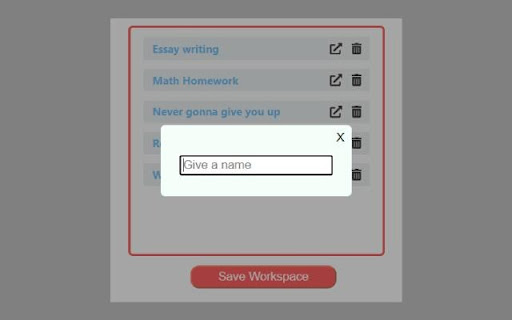
Save your open tabs as a workspace. Have you ever wanted to save your open tabs while you are doing a research or while working on a project to come back later? If your answer is yes, then try this extension. It will be useful to you.

Chrome Workspace Saver
Save and restore open Chrome tabs. In one click, consolidate and save all of your currently opened Chrome tabs into a single "workspace". Have all of your tabs for a given workspace auto-opened in one click by selecting one of your saved workspaces. Each workspace you create will be saved across Chrome sessions and can be launched at any time.

My Workspace
An extension to manage your tabs as workspace My Workspace is a powerful Chrome extension that enables you to effortlessly save your current tabs as custom workspaces. Organize all your tabs into logical groups and open them with a single click whenever you need.

SpaceVibe
✴️ The Ultimate Tab Management Solution Constantly lost in the sea of tabs? Switching projects or topics overwhelms you? SpaceVibe is your perfect solution! Create workspaces for different tasks, projects, or topics. Group related tabs and bookmarks within each workspace. Switch workspaces and sync tabs instantly. Eliminate distractions, maximize your productivity. All the features you want, in a fast, local app. Their performance depends on the internet. SpaceVibe runs on your machine. Free your workflow from distant servers. Access your data even when offline. Manage your workspaces anytime, anywhere, instantly. Why create accounts for every minor app? Why leave your data to random servers? No tracking, no data collection, and most importantly - no ads. Keep your data local, no more vendor lock-in. ✴️ Data Sync - The Natural Solution How do you sync without creating an account? The answer is natural: Store your workspaces in your browser bookmarks. Access your workflow anywhere using browser sync. Easily backup or transfer your data by exporting bookmarks. Excitingly, future updates will offer syncing with your preferred third-party services. ✴️ Your Feedback Matters Your support makes long-term improvements possible. Share your experience – report issues, suggest features on my Discord server: https://discord.gg/zPRGEVNAPB Special offer for early supporters - a lifetime license for $20: https://www.patreon.com/zoekai/shop

Edge Workspaces
Effortlessly organize and manage multiple projects or tasks by saving and restoring entire browsing sessions. Edge Workspaces empowers Chrome users with advanced tab management: * Preserve context: Save and restore entire browsing sessions * Reduce clutter: Keep your browser organized by project or task * Improve focus: Easily switch between different work contexts * Automatic saving: Never lose your place with continuous workspace updates * Keep in sync: Your workspaces stay in sync across computers via Google sync Install Edge Workspaces to take control of your tabs and boost your productivity. Ad-free and free to use, forever! This extension is open source. Check out the GitHub repository: https://github.com/Elec0/chrome-edge-workspaces ## Creating a Workspace ## 1. Open the extension popup by clicking the icon in the toolbar (pinning the extension is recommended). 2. Click the "+" icon to open the new workspace modal. 3. Select either "New workspace" or "New workspace from window". 4. Enter a name for the workspace. 5. Click "OK". 6. A new Chrome window will open with the New Tab page. 7. All tabs in the current window will be saved to the workspace as you work. 8. Close the window when finished. ## Opening a Workspace ## 1. Open the extension popup. 2. Click on a workspace to open it. 3. The saved tabs will be opened in a new Chrome window. ## Managing Workspaces ## - Click the trashcan icon to delete a workspace. - Click the pencil icon to rename a workspace. ## Saving Workspaces as Bookmarks ## - Ensure "Save workspaces to bookmarks" option is checked in Settings. - Workspaces will now be copied to "Other bookmarks -> Edge Workspaces (read-only) -> [Workspace Name]". - Note that changes to the bookmarks will **not** be reflected in the workspaces themselves, as they are just a copy. - When installing a new version, make sure to open old workspaces at least once to allow for them to be saved as bookmarks. ## Importing/Exporting Workspaces ## 1. Open the extension popup. 2. Click the hamburger icon to open the settings window. 3. Click "Export" to save all workspaces to a file. 4. Click "Import" to load workspaces from a file.
