
behjpglhfclaokfgokdninebdgcfckhp
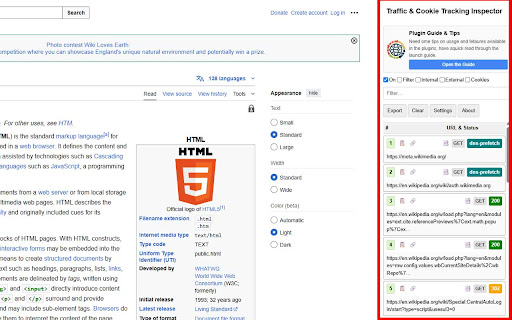


Logs HTTP requests in a sidebar with cookie tracking, filtering, and export functionality. Unleash the power of the Network panel directly in your browser window! The Traffic & Cookie Tracking Inspector is an essential tool for web developers, SEO professionals, digital marketers, and quality assurance testers. It provides a persistent, on-page sidebar that logs all HTTP/S requests, giving you an immediate and clear view of what’s happening under the hood of any website. Tired of constantly opening and navigating the built-in DevTools? Our inspector lives right on the page, allowing you to monitor traffic, inspect cookies, and debug tracking scripts in real-time as you interact with the site. KEY FEATURES ✨ Live & Persistent Traffic Logging See all network requests for the current tab appear in a clean, organized list as they happen. Unlike the standard DevTools, this log persists as you navigate from page to page within the same tab, allowing you to trace a complete user journey without losing valuable data. 🔎 Detailed Request Inspection Click any request to expand a detailed view including: - Full URL, Method, Status Code, and Type - Precise Timings and Filesize (Chunked supported) - Complete Request and Response Headers - Initiator and Redirect Information 🍪 Comprehensive Cookie Analysis Instantly see all cookies associated with a request. Session cookies are automatically highlighted, and expiration dates are clearly displayed. ↪️ Advanced Redirect Tracking Our inspector goes beyond the standard Network panel by detecting multiple types of redirects: - Server-Side Redirects: Captures all 301, 302, and other 3xx status codes. - JavaScript Redirects: Intercepts window.location changes to reveal client-side routing. -Meta-Refresh Redirects: Automatically detects and logs redirects initiated by tags. 🎛️ Powerful Filtering System Quickly isolate the data you need: - Filter by resource type (Webpages, Images, Scripts, CSS, Video, etc.). - Show only requests that set or send cookies. - Isolate traffic to internal (same-site) or external (third-party) domains. - Live text search to filter requests by URL, status, or method. 📄 One-Click Data Export Export the entire captured network log to a CSV file with a single click, perfect for analysis, reporting, or sharing with your team. 🔄 Dynamic Remote Configuration Stay up-to-date with offers and guides loaded dynamically from our servers. 🛡️ CSS-Isolated UI Built with a Shadow DOM to ensure the extension’s interface is never broken or affected by the host website's styles. WHO IS THIS FOR? - Web Developers: Debug network bottlenecks, inspect API requests, and verify header information without leaving the page context. -SEO Specialists: Easily track redirect chains (including client-side ones), analyze page load resources, and identify third-party scripts impacting performance. - Digital Marketers: Verify that analytics, marketing, and conversion pixels (Google Tag Manager, Facebook Pixel, etc.) are firing correctly and see what data they are sending. - QA Testers: Quickly identify failed requests (4xx/5xx errors), analyze resource loading issues, and ensure proper cookie behavior across different user flows. Stop hunting through the clutter of the standard DevTools. Get the clear, persistent, and powerful network inspector you've always wanted. Install Traffic & Cookie Tracking Inspector today and take control of your web debugging workflow

Cookie Collector
Monitor and track cookies from specific domains with real-time updates and export capabilities # Cookie Collector Extension - User Guide Cookie Collector is a focused browser extension that monitors and tracks cookies from specific domains you choose. Unlike generic cookie viewers, it provides targeted monitoring with real-time updates, status tracking, and export capabilities for the domains you care about most. ### 🎯 **Targeted Domain Monitoring** - Monitor cookies from specific domains you configure - Add multiple root domains to your watchlist - Focus on relevant cookies instead of overwhelming data ### 📊 **Real-Time Cookie Tracking** - Live monitoring of cookie changes (Active, Updated, Removed) - Real-time status updates as cookies are modified - Automatic refresh when the side panel becomes visible ### 🔍 **Smart Cookie Management** - Two viewing modes: List view and Grid/Table view - Sortable table columns (Name, Domain, Path, Expires, Origin, Modified, Status) - Search cookies by name or domain - Filter by cookie status (Active, Updated, Removed) ### 🛠️ **Export & Data Management** - Export cookies to JSON format with timestamps - Automatic filename generation (cookies_domain_date.json) - Clear cookie logs to start fresh monitoring - Refresh cookies manually when needed ### 🔒 **Privacy & Security Features** - All data stored locally in your browser - No external data transmission - Monitor only the domains you choose - Secure cookie data handling ### For Developers - **Debugging**: Easily inspect cookies during development and testing - **Testing**: Verify cookie behavior across different scenarios - **Documentation**: Generate cookie documentation for your applications - **Compliance**: Ensure your apps meet cookie-related requirements ### For Security Researchers - **Audit**: Analyze website cookie security practices - **Monitoring**: Track suspicious cookie behavior - **Compliance**: Check GDPR and privacy regulation compliance - **Vulnerability Assessment**: Identify potential security issues ### For Marketers & Analysts - **Tracking**: Understand how websites use cookies for analytics - **Competitive Analysis**: Study competitor cookie strategies - **Performance**: Monitor cookie impact on website performance - **User Experience**: Analyze cookie-related user journey data ### For General Users - **Transparency**: See what cookies websites are setting - **Privacy**: Understand your digital footprint - **Control**: Make informed decisions about website usage - **Education**: Learn about web technologies and privacy ### Installation 1. Visit the Chrome Web Store and search for "Cookie Collector" or use the direct link 2. Click "Add to Chrome" button on the extension page 3. Review the permissions and click "Add extension" in the confirmation dialog 4. The extension icon will appear in your browser toolbar 5. Click the extension icon to open the side panel and start using Cookie Collector #### 1. **Setup Domain Monitoring** - Click the extension icon to open the side panel - In the "Domain Setup" section, enter the root domain you want to monitor (e.g., "example.com") - Click "✅ Add Domain" to add it to your monitoring list - Add multiple domains if needed - Click "🚀 Start Monitoring Cookies" to begin #### 2. **Monitor Cookies in Real-Time** - Once monitoring starts, the setup section collapses and monitoring section expands - Cookies are automatically collected and displayed in real-time - View live statistics showing total, active, updated, and removed cookies - Use the "🔄 Refresh" button to manually update cookie data #### 3. **View and Analyze Cookies** - **List View**: Compact list showing cookie details - **Grid View**: Sortable table with columns for Name, Domain, Path, Expires, Origin, Modified, and Status - Click column headers to sort cookies - Use search bar to find specific cookies by name or domain - Filter by cookie status (Active, Updated, Removed) #### 4. **Export and Manage Data** - Click "📥 Export" to download cookies as JSON file - Files are automatically named with domain and date (e.g., "cookies_example.com_2024-01-15.json") - Use "🗑️ Clear" to reset cookie logs and start fresh monitoring - Click "⏹️ Stop" to stop monitoring and return to setup mode #### **Smart Section Management** - Automatic accordion-style interface that expands/collapses sections - Setup section automatically collapses when monitoring starts - Monitoring section automatically expands when active - Clean, focused interface that adapts to your current task #### **Performance Optimizations** - Debounced search (300ms delay) for smooth typing experience - Automatic refresh when side panel becomes visible - Efficient cookie filtering and sorting - Memory leak prevention with proper cleanup #### **Cookie Status Tracking** - **Active**: Cookies currently present and unchanged - **Updated**: Cookies that have been modified since last check - **Removed**: Cookies that were deleted or expired - Real-time status updates as cookies change ### **Web Development & Testing** - Monitor cookies during development to debug authentication flows - Track cookie changes when testing login/logout functionality - Verify cookie persistence across page refreshes - Document cookie behavior for your applications ### **Security & Privacy Research** - Monitor specific domains for suspicious cookie behavior - Track when and how cookies are modified during browsing - Audit cookie usage patterns on websites you visit - Understand how websites use cookies for tracking ### **Quality Assurance & Debugging** - Test cookie behavior in different browser sessions - Monitor cookie expiration and removal - Debug cookie-related issues in web applications - Verify cookie security settings and flags ### **Personal Privacy & Transparency** - See exactly what cookies websites are setting on your device - Monitor cookie changes in real-time as you browse - Understand your digital footprint on specific domains - Make informed decisions about website usage and privacy ### **Data Handling** - All cookie data is stored locally on your device - No information is sent to external servers - Data is processed entirely within your browser - You maintain full control over collected data - **Browser**: Chrome/Chromium-based browsers (version 88+) - **Permissions**: - `cookies` - To read and monitor cookie data - `storage` - To save your domain preferences - `tabs` - To track active tabs - `sidePanel` - To display the extension interface - **Storage**: Minimal local storage for domain preferences and cookie data - **Performance**: Lightweight extension with minimal impact on browsing speed ### **Getting Help** - Contact support for technical assistance ### **Updates** - Regular feature updates and improvements - Security patches and bug fixes - Performance optimizations - New browser compatibility updates Cookie Collector is an essential tool for anyone who works with web technologies, values privacy, or wants to understand how the modern web operates. Whether you're a developer debugging authentication issues, a security researcher auditing websites, or a privacy-conscious user wanting transparency, Cookie Collector provides the tools and insights you need. Install Cookie Collector today and take control of your web experience while gaining valuable insights into the digital world around you.

Fetch Log - API Inspector
Monitor and inspect fetch/XHR network requests with a clean developer UI **TL;DR:** Fetch Log is the Chrome extension DevTools should have shipped. It strips away the noise, capturing only real API (fetch/XHR) traffic in a persistent, developer-focused popup—no static assets, no bloat, no learning curve. **What’s actually happening?** - Real-time monitoring of HTTP API requests using the Debugger API - Live, filterable feed: case-insensitive, persistent filters - Drilldown: Pretty-printed JSON, syntax highlighting, one-click copy for headers, bodies, or responses - Auto-refreshes pending requests; dark mode for late-night debugging - All data is local, ephemeral, and under your control—no tracking, no analytics **Why bother?** - DevTools’ Network tab is a haystack; Fetch Log is the needle - Lightweight, popup UI (400x600) with zero setup—install and go - Remembers your filters, highlights endpoints, and gets out of your way - Built for frontend devs, API integrators, and anyone tired of sifting through web cruft **Limitations (aka: honesty is a feature):** - No chrome:// or extension page debugging - One tab at a time; debugger detaches on tab switch - HTTP(S) only—no WebSocket voodoo - Popup closes on navigation (Chrome’s rules, not ours) **Perfect for:** REST/GraphQL wranglers, API explorers, anyone who wants a sharper, simpler network inspector.

Cloudflare Magic Link Generator
Generate and copy Cloudflare Magic dashboard links from the right-click context menu. Generate and copy Cloudflare Magic Dashboard links from the right-click context menu.

HTTP Nowhere
This extension upgrades non-secure connections (HTTP) to secure (HTTPS). If the web site does not correctly support HTTPS, Chrome will refuse to connect (with the usual interstitial warning page). Thus, this extension will make it hard to view some web sites. For maximum safety, you should also turn on Chrome’s Secure DNS (DNS over HTTPS) feature. There is no way (yet?) for an extension to turn this on for you, so you have to do it manually. To do so, go to the dots menu → Settings → Security, and then scroll down to Use Secure DNS. Select a provider or fill in your own. (You can also get to this setting by navigating to the URL chrome://settings/security?search=dns.) HTTP Nowhere is designed to be as simple as possible, and has no functionality other than upgrading connections. This is easy to see in the very short and simple implementation. It needs no special permissions or access to the web pages you view. There is nothing to configure; HTTP Nowhere is either on or off.
