
alofnhikmmkdbbbgpnglcpdollgjjfek
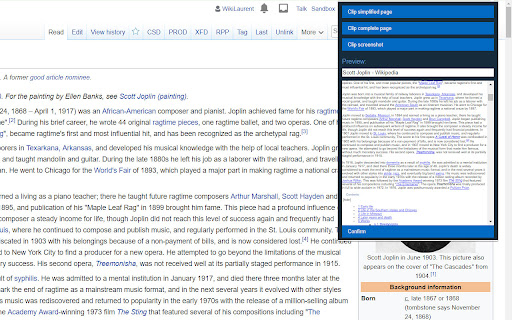
Capture and save web pages and screenshots from your browser to Joplin. This is a web clipper that allows you to save web pages to Joplin and take screenshots while you're browsing the internet. You can either save complete web pages or simplified versions of it. You will need the Joplin desktop application to use this extension.

Obsidian Web Clipper
Save and highlight web pages in a private and durable format that you can access offline. The official extension for Obsidian. Bring the web to your personal knowledge base. Save content to your Obsidian vault so you always have access to it, even offline. Obsidian is secure, private, and designed around durable open formats that allows you to preserve your data for the long term. Obsidian Web Clipper is the best way to save, highlight, and interpret the web: - Save anything: From news articles and blog posts to recipes, product pages, and research papers — if it's on the web, you can save it. - Highlight: Easily highlight important passages, and save highlights to Obsidian. When you return to a page, your highlights are visible. - Interpret: Use natural language to extract and modify data from pages. Compatible with any model provider including local model options. - Save entire pages, selected text, or just the main content. - Templates let you automatically extract structured metadata from web pages. - Rules let you apply a specific template based on the website you're on. - Advanced templating variables let you extract data from OpenGraph, Schema.org, CSS selectors, and more. - Filters let you format and transform data before saving it. - Hotkeys let you save pages with a single keystroke. As with everything Obsidian, Web Clipper is designed to protect your privacy, and give you control over your data. - No lock-in: Your data is saved in durable, portable Markdown files. No proprietary formats. - Offline access: Your data is stored locally, and available later even without an internet connection. - 100% private: Obsidian doesn't gather or store any data about your requests. Obsidian helps you create connections and links between your notes so you can organize your thoughts. You can create links between everything — ideas, articles, lists, locations, books — anything you can put in a note, you can link to other notes. Obsidian Web Clipper is open source. You can help us improve it by submitting issues and feature requests on GitHub: https://github.com/obsidianmd/obsidian-clipper

Web Clipper for NotebookLM
Save web pages, PDFs, and YouTube videos to NotebookLM instantly If you use NotebookLM for research, studying, writing or creative work, this Chrome extension makes adding sources nearly effortless. With a single click you can save web pages, PDFs, YouTube links, AI chats and more directly into your NotebookLM workspace. And now, you can export the artifacts NotebookLM generates — flashcards, quizzes, mind maps, reports, even entire chat conversations — in formats ready for your favorite tools. 🎬 YouTube to NotebookLM: the ultimate solution Adding YouTube content to NotebookLM has never been easier. This extension gives you full control over how you capture video content: • Videos: add any YouTube video as a source with one click • YouTube Shorts: floating button appears on Shorts pages for instant saving • YouTube Channels: add an entire YouTube channel to NotebookLM, or select specific videos to include • YouTube Playlists: batch add curated video collections directly to your notebooks, with the option to pick exactly which videos to include Perfect for building research notebooks from lectures, talks, podcasts, tutorials, interviews or educational content. The extension automatically handles everything so NotebookLM can summarize, answer questions and generate insights from your video sources. 📤 Export your artifacts NotebookLM generates amazing content — flashcards, quizzes, mind maps, reports, notes, slide decks. Now you can take them anywhere: • Data Tables → Excel or Markdown • Flashcards & Quizzes → Excel, JSON, or Anki TSV (ready for direct import) • Mind Maps → FreeMind, OPML, Markdown, or Obsidian Canvas • Notes → Word or Markdown • Reports → PDF, Word, or Markdown • Slide Decks → all slides as PNG images in a ZIP The export menu appears right in the artifact context menu, matching Google's native UI — it feels like it was always there. Clone an entire notebook — every source, every Google Drive link — without rebuilding it by hand. Set up a course notebook once, then spin off variants for each module, topic, or client. • One click from NotebookLM itself: "Duplicate" lives in the notebook list alongside Rename and Delete • One click from the side panel: "Duplicate" is in the actions menu on every notebook • Google Drive sources stay linked: Docs, Slides, and Sheets from Drive keep their live connection to the original file, so AutoSync keeps working on the copy 📄 Export your NotebookLM chat as Markdown or PDF Take research conversations out of NotebookLM. A new download button in the chat panel header turns the full conversation into a polished file you can share, archive, or feed into another tool: • Markdown export: clean .md with every prompt and response, inline citation markers preserved, and a Sources section mapping each citation back to its title • PDF export: same content with color-coded role labels (You / NotebookLM) and clean pagination between turns • Native UI: the download button blends into NotebookLM's chat panel and the dropdown styling matches the app's native menus exactly Google Docs, Slides, Sheets, and PDFs imported from Drive don't automatically refresh in NotebookLM when the originals change. This extension fixes that: • Manual sync: click the "More" button (⋮) on any Google Drive source to refresh it instantly, or sync all sources at once • AutoSync: enable automatic synchronization per notebook and your imported documents stay current in the background — no manual intervention needed • Easy setup: open the side panel, navigate to your notebook, and click the gear icon to access AutoSync settings Your research stays accurate even as your source documents evolve. Save content from X directly into your research notebooks. The extension automatically detects when a tweet is part of a thread and grabs all connected posts. • Tweets & Threads: save any tweet or capture an entire thread as a single source • Articles: save articles shared on X directly to your notebooks • Two ways to save: use the Web Clipper buttons on X, or save directly from the side panel Perfect for capturing insights, expert opinions, industry discussions or breaking news for your research. Save your conversations with AI assistants (ChatGPT, Claude, Gemini and more) directly into your research notebooks — full threads or hand-picked messages, all in one click. • Full conversations: clip an entire chat as a single source, preserving every prompt and response so NotebookLM has the complete context • Individual messages: pick just the answers worth keeping and skip the rest • Two ways to clip: use the Web Clipper buttons injected right inside each AI assistant, or clip from the side panel • Smart re-clipping: clip the same conversation again and the existing source updates in place — no duplicate sources cluttering your notebook (Pro) Perfect for turning brainstorming sessions, research chats, coding help, or deep-dive explanations into durable sources you can summarize, question, and build on inside NotebookLM. Save Reddit discussions directly into your research notebooks — posts, threads, and top community replies, all in one click. • Original post: add any Reddit post as a source from the thread page, the subreddit feed, or the homepage • Post + top comments: save the original post together with the highest-quality replies, giving NotebookLM the full discussion context • Hand-pick replies: select individual comments from a thread to include exactly what's relevant • Three ways to save: use the Web Clipper buttons injected natively next to the share button on any post, click directly from the subreddit or homepage feed, or save from the side panel Perfect for capturing expert discussions, community insights, how-to threads, debate breakdowns, or niche knowledge that lives only in Reddit comments. Save articles from Note.com — Japan's popular writing platform — directly into your research notebooks. The extension supports both free and paid articles. • Free articles: clip any Note.com article to NotebookLM with one-click buttons directly in the article • Paid articles: clip the free preview, or the entire content if you've already purchased access • Two ways to clip: use the Web Clipper buttons on Note.com pages, or clip directly from the side panel 🧹 Clean up your notebooks fast A trash button in the NotebookLM Sources panel lets you remove dozens of sources at once. Open the picker, search and filter by source type, select what you no longer need, and delete them in a single batch — no page reload, and your in-progress chat stays right where you left it. 👉 One-click source capture: no copy/paste, no switching tabs. Save any web page or article into NotebookLM instantly. 👉 PDF support: a floating button appears when you view any PDF in Chrome, including arXiv research papers. One click, and it's added to your notebook. No download required. 👉 Naver News support: a button appears at the top of Naver News articles (news.naver.com), making it easy to add Korean news content to your notebooks. 👉 Seamless notebook & source management: choose which notebook to save new sources into, organize them by project, topic or course. Works with the way you already work. 👉 Easy Google account switching: if you juggle multiple Google/Workspace accounts (e.g. personal, school, work), switching between them to add sources is hassle-free. 🚀 Why this extension matters NotebookLM shines because it lets you upload PDFs, Docs, slides, URLs and YouTube videos, then summarize, analyze and answer questions using only your own sources. But grabbing content used to be manual and fragmented. This extension removes that barrier. Instead of downloading, uploading or copy/pasting documents, you simply hit one button in your browser and send the source directly to the right notebook, saving time and letting you focus on insight rather than logistics. 1. Install the extension 2. Visit any web page, PDF, YouTube video or AI chat you want to save 3. Click the extension icon (or the floating button on PDFs and YouTube), choose your target notebook 4. Head to NotebookLM and start summarizing, asking questions, generating study guides, audio overviews, mind maps or reports 5. Export any artifact — or the entire chat conversation — to your preferred format: Anki, Obsidian, Word, PDF, and more • Duplicate any notebook: clone a full notebook from the side panel or from inside NotebookLM, with Google Drive links preserved • Cleaner LLM clips: no more "User:" / "AI:" turn markers, smarter titles based on the first message, and clip buttons that show up the first time you switch conversations • Fix: DeepSeek user prompts no longer dropped from clips

Notebook Web Clipper – Sticky Notes & Save Articles
Clear the clutter. Clip the web. Save to Notebook. Introducing 'Meeting Notes'. Taking notes during an online meeting is now a breeze with Notebook extension on Chrome. When you're on an online meeting using Zoom, Cisco Webex , Zoho Meeting, and Zoho Showtime, you can see a a popped out Notebook icon which helps you to take quick notes. If you have not logged into your Zoho account in the browser, you can export your meeting notes as a .txt file. You can choose a notebook and associate tags before you save your meeting notes to Zoho Notebook. Notebook Web Clipper Clip content from the web to your Notebook with Web Clipper. Clipped content, saved as Note Cards, are immediately synced across your devices. Please download Notebook apps from Google PlayStore(https://play.google.com/store/apps/details?id=com.zoho.notebook) or Apple AppStore(https://itunes.apple.com/us/app/notebook-take-notes-sync-across-devices/id973801089?ls=1&mt=8). You can also view your notes from https://notebook.zoho.com. What can you clip? * Be it a new recipe you want to try or the next place you want to visit, clip text, images, or links into a note card, and save to a specific notebook. * Want to save an article for future reference? With Clean View, you can save the entire article as a note card, minus the ads. * Need to quickly grab a screenshot of a web page? The 'Screenshot’ option quickly saves the screenshot as a Photo Card. * Convert any link to Smart Cards. Refer https://www.zoho.com/notebook/smart-card.html for more details on Smart Cards. * Annotate images / screenshots before you add those in Notebook. We've added a complete annotation tool to edit your images. * Use Meeting Notes to take quick notes on an online meeting using Zoom, Cisco Webex, Zoho Meeting and Zoho Showtime. Web Clipper can also be used to create note cards. Have a quick thought you want to note without leaving your browser? Create a quick note from scratch right from your browser. You can also add photos directly from your computer to Web Clipper. Write your feedback to support@zohonotebook.com zoho.com/notebook

Convert WebP to JPG
Convert webp to jpg images online and offline. Save webp images on websites as jpeg files. Convert local webp pictures to JPG, PNG. Tired of dealing with webp images that won’t open in your favorite apps or browsers? Meet Convert WebP to JPG — the ultimate Chrome extension designed to make format conversions fast, easy, and hassle-free. Whether you’re looking to convert a single image or batch process dozens at once, this handy utility transforms your webp files into widely compatible jpg or jpeg formats in just a click. Key Features & Benefits ✔️ Add a “Save image as JPG” option to your browser’s right-click menu for fast conversions. ✔️ Instantly save images as jpg directly from any webpage. ✔️ Drag-and-drop functionality lets you quickly convert pictures from your computer. ✔️ Batch convert multiple webp images to jpg or png at once. ✔️ Adjust picture quality and compression settings for customized results. ✔️ All conversions happen locally — keeping your files private and secure. ✔️ No need to visit online converters — everything you need is right in your browser. 🚀 Right-Click Convenience With Convert WebP to JPG, converting is as simple as a right-click. Just select "Save image as JPG" on any webp file you find online, and this add-on instantly downloads the converted file in jpg format to your device. Say goodbye to compatibility headaches and hello to a smoother workflow. 📂 Drag-and-Drop Simplicity Got a folder full of webp files? No problem. Just drag your files into the Convert WebP to JPG extension window, and watch them convert automatically. Save time and effort by handling multiple files in one quick move. 🖼️ Batch Conversion Power Need to convert a whole set of images at once? This extension makes it effortless. Upload multiple webp files, tweak the output quality or format if you like, and download them as jpg or png in seconds — perfect for web designers, developers, and content creators. How It Works 1️⃣ Install Convert WebP to JPG in your Chrome browser. 2️⃣ Right-click any image on a webpage and select “Save image as JPG” to convert it instantly. 3️⃣ Or open the extension window and drag your webp files in for a fast, automatic conversion. 4️⃣ Choose quality settings for batch jobs if needed, and download your images in a click. What is WebP and Why Convert It? WebP is a modern image format developed by Google, offering efficient compression and high-quality visuals. While it’s great for reducing file sizes online, not all browsers, software, and devices support webp. That’s where Convert WebP to JPG comes in — it helps you easily change webp files into jpg or jpeg formats, ensuring your images open and display smoothly everywhere. Who Can Benefit from Convert WebP to JPG 🌐 Web developers who need to transform assets for cross-browser compatibility. 📸 Photographers and content creators looking to share pictures on platforms that don’t support webp. 🖥️ Graphic designers working with apps that require jpg or jpeg formats. 🎨 Social media managers needing fast, reliable image file format changes for campaign visuals. Why Choose Convert WebP to JPG? ⭐ Ultra-fast conversions in your browser, no online upload required. ⭐ Keeps your images private by processing everything locally. ⭐ Batch conversion feature saves you valuable time. ⭐ Right-click integration for seamless workflow on any webpage. ⭐ Adjustable quality settings for custom results. ⭐ Simple, lightweight utility that works quietly in the background. 💡 Tips for Better Image Management ✔ Keep a backup of your original webp files in case you need them later. ✔ Use the batch converter for social media campaigns or blog image libraries. ✔ Test different compression settings to balance image quality with file size. ✔ Organize your downloads folder to easily find converted images. ❓ How do I convert a webp file to jpg in Chrome? 🔹 Simply right-click on any webp image in your browser and select “Save image as JPG” using Convert WebP to JPG. The converted file downloads instantly. ❓ Can I convert multiple images at once? 🔹 Yes! Drag several files into the extension window and convert them all at once using the batch conversion feature. ❓ Is it safe to use this converter for private images? 🔹 Absolutely. Convert WebP to JPG processes all conversions locally on your computer, keeping your files secure and never uploading them online. Transform Your Workflow Today! Convert WebP to JPG turns conversions from a chore into a one-click task. Streamline your projects, skip online converter sites, and enjoy a faster, easier way to save images in the format you need. Make image handling effortless — right from your Chrome browser!
