
akmnoalaiejbicphdhagambchhchbnfi
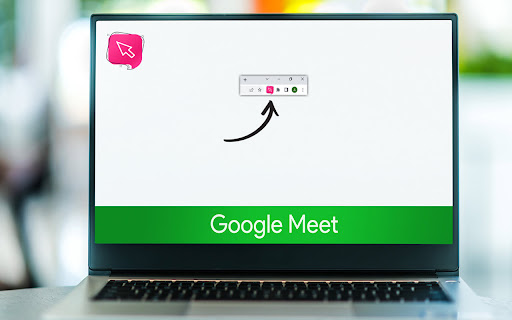
One-click to get back to your active Google meeting tab. Simplicity is the king. That’s the most straightforward extension you can find. Just click the extension Icon, and the active meeting tab will instantly pop – No matter how many tabs or Chrome windows are open. * Don't forget to pin the extension after the installation. If you like this extension and use it, please rate it and spread the word :)

My Open Tabs
Show open tab of Sheets, Docs and Slides This extension will make you life so much better. When you have many google Sheets/docs/slides tabs open and you don`t know which is which , it will organize them by type in a simple list - just click the item you are looking for and you will jump directly to the open tab - no more opening the same sheet multiple times just because you cant find it. You can now search for a specific document as well as sort A-Z or last opened Here are some useful keyboard shortcuts - Press Ctrl+Shift+K to open the extension from any page - While in extension - Press Alt+Right Arrow to move into the next tab type - Press Alt+Left Arrow to move into the previous tab type - Press Arrow Down or Arrow Up to change focus on item - Press Enter to open the selected item (highlighted)

New Google Meet
Make sure to pin the icon after installation. Upon clicking on the icon, it will simply create a new google meet in a new tab. Streamline your virtual meetings with our Chrome extension, 'Meet & Greet'! With just a single click on the extension icon, open a new Google Meet in a new tab instantly. Save precious time by bypassing the hassle of manually creating meetings, and dive straight into productive discussions with ease.

Em-Dash Replacer
Replace em dashes, en dashes, and other characters in selected text anywhere on the web Make your AI-generated text look more natural and human-written by removing em dashes (—), En dash (–) and Hyphen (־) characters that AI chatbots commonly use. 🤖 WHY USE THIS? AI chatbots like ChatGPT, Claude, Gemini, and Copilot frequently use dashes in their responses. These distinctive dashes can make it obvious that text was AI-generated. Em-Dash Replacer helps you make AI-written content look more natural by replacing these with regular dashes (-) or any character you prefer. 🎯 PERFECT FOR: • Making AI chatbot responses look more natural • Editing ChatGPT, Claude, Gemini, or Copilot output • Professional writing and content creation • Academic work where you need to polish AI-assisted text • Copying text from PDFs or articles ✓ One-Click Replace Select any text on any webpage and click the "Replace" button to replace dashes directly on the page. ✓ Smart Copy Right-click selected text and choose "Copy without em dashes" to copy to clipboard with dashes replaced (without modifying the page). ✓ Keyboard Shortcut Press Cmd+Shift+C (Mac) or Ctrl+Shift+C (Windows/Linux) to instantly copy selected text with dashes replaced. ✓ Auto Mode for AI Chatbots Enable Auto Mode to automatically replace dashes as you type on: • ChatGPT • Google Gemini • Microsoft Copilot • Claude ✓ Fully Customizable • Choose which dash types to replace (em dash, en dash, hyphen) • Change the replacement character (default: regular hyphen) • Works on ALL websites 🔒 PRIVACY & SECURITY: • No data collection • No tracking • Works entirely on your device 1. REPLACE ON PAGE - Select text on any webpage - Click the extension icon - Click "Replace" to replace dashes directly on the page - After replacing, use the "Copy Replaced Text" button to copy 2. RIGHT-CLICK MENU (ChatGPT, Gemini, Claude, Copilot) - Select text - Right-click and choose "Copy without em dashes" - Text is copied with dashes replaced (page unchanged) 3. KEYBOARD SHORTCUT - Select text - Press Cmd+Shift+C (Mac) or Ctrl+Shift+C (Windows) - Text is copied with dashes replaced 4. AUTO MODE - Click the extension icon - Toggle "Auto Mode" ON - Dashes are automatically replaced as you type on AI chatbot sites 🎨 CHARACTERS REPLACED: • Em dash (—) - the long dash • En dash (–) - the medium dash • Hyphen (־) - the high hyphen character Perfect for anyone who regularly works with text from PDFs, articles, or international content!

Meet Chat Transcribe
Transcribe Google Meet Chats to a Google Doc. When engaged, chats will be saved to a Google doc in the Meet Chat Transcripts folder of your Google Drive.
