
akaeoepndhnhffnginkbdcoigbpnnljh
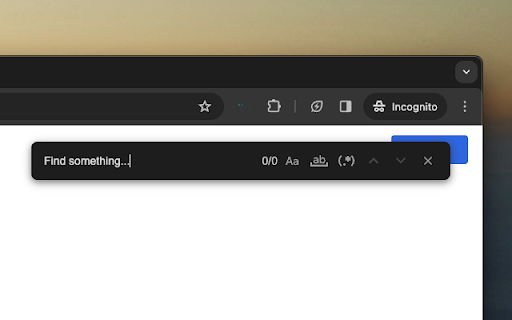
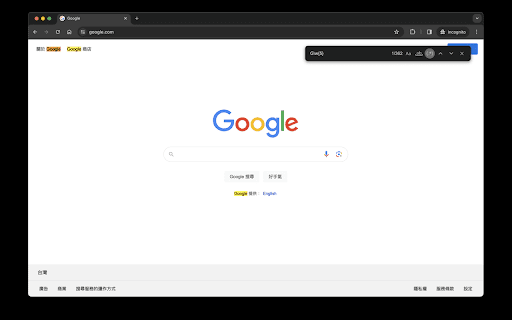
An extension for Regex Find. Search for regular expressions within webpages Feature: - Blazing fast: achieves an overall time complexity of O(n), where n is the total content on the page. - Seamless integration: Adopts keyboard shortcuts consistent with Chrome's default settings. Limitations: - Due to limitations in ECMAScript regular expression implementations, certain features are not supported, such as positive lookbehind with `?

Regex Search and Extract
Our extension provides a seamless way to search, extract, and format data from webpages using regular expressions. Regex Search and Extract is a versatile and user-friendly Chrome extension designed to enhance your web browsing and data extraction experience by offering advanced regex search capabilities. This powerful tool allows you leverage regular expressions to search, extract, format, and export text from webpages quickly and efficiently. Key Features: • Regex Search and Extract: Perform complex search queries using regular expressions to find specific patterns, words, or phrases in the text of a webpage. This feature is particularly useful for developers, researchers, and anyone who needs to locate and analyze text data with precision. • Custom Regex Flags: Customize your search by specifying regex flags like "g" (global search) and "m" (multiline search), giving you greater control over how your regular expressions are applied. • Capture Groups: Use capture groups to extract and format specific parts of your regex matches. Regex Search and Extract supports both named and numbered capture groups, allowing for more flexibility in formatting the output. Modify the output format of your search results using a simple and intuitive syntax. For example, you can combine capture groups with static text to create a custom output, such as "Email: ${email}" or "Number: ${one}". • Copy to Clipboard & Export Functionality: Quickly copy your search results to the clipboard or export them as a .txt file for further analysis or documentation. By installing Regex Search and Extract, you'll gain a powerful tool that saves time when searching and extracting data from webpages. Whether you're a developer, researcher, or simply someone who frequently searches for specific text patterns, this extension will make your life easier and more productive.

Regex Search
This regex search tool highlights matches on a page, allowing navigation between results and copying matches to the clipboard. The 𝗥𝗲𝗴𝗲𝘅 𝗖𝗵𝗿𝗼𝗺𝗲 𝗘𝘅𝘁𝗲𝗻𝘀𝗶𝗼𝗻 is a powerful tool designed for advanced text search and manipulation. It highlights matches on a page, allows smooth navigation between results, and lets you copy matches directly to your clipboard. Whether you’re a developer, researcher, or data analyst, this tool makes complex search operations simple and efficient. 💡 𝗞𝗲𝘆 𝗙𝗲𝗮𝘁𝘂𝗿𝗲𝘀: ✅ 𝗥𝗲𝗴𝗲𝘅 𝗣𝗮𝘁𝘁𝗲𝗿𝗻 𝗦𝗲𝗮𝗿𝗰𝗵 & 𝗧𝗲𝘅𝘁 𝗦𝗲𝗮𝗿𝗰𝗵: Perform detailed searches using regular expressions or basic text queries. The extension supports a wide range of regex syntax, enabling precise regex pattern search for accurate data extraction. ✅ 𝗥𝗲𝗴𝗲𝘅 𝗛𝗶𝗴𝗵𝗹𝗶𝗴𝗵𝘁𝗲𝗿: Instantly highlight all matches on a page. This built-in regex highlighter ensures you can easily spot relevant data within large amounts of text. ✅ 𝗖𝗮𝘀𝗲 𝗦𝗲𝗻𝘀𝗶𝘁𝗶𝘃𝗶𝘁𝘆 𝗧𝗼𝗴𝗴𝗹𝗲: Switch between case-sensitive and case-insensitive searches with one click for flexible search control. ✅ 𝗖𝗼𝗽𝘆 𝗥𝗲𝘀𝘂𝗹𝘁𝘀 𝗘𝗮𝘀𝗶𝗹𝘆: Copy all matched results to your clipboard in one step, making it easier to transfer data into other tools or documents. ✅ 𝗥𝗲𝗮𝗹-𝗧𝗶𝗺𝗲 𝗦𝗲𝗮𝗿𝗰𝗵 𝗥𝗲𝘀𝘂𝗹𝘁𝘀: Matches appear dynamically as you type, allowing you to refine your regex queries instantly and improve accuracy. With the Regex Chrome Extension, you get advanced search control, real-time highlighting, and powerful regex-driven features that streamline data extraction, debugging, and text analysis.

find+ | Regex Find-in-Page Tool
A find-in-page extension with support for regular expressions. {find+} is a powerful Find-in-Page extension for Google Chrome allowing you to search a web page or document by regular expression. It has been designed to look and behave much like the native CTRL-F tool, but extended with various useful features. With {find+}, you can match any legal JavaScript regular expression against text in the page, use find-and-replace to replace text in the page, copy occurrences of a regex to your clipboard, store frequently used expressions, and configure the extension the way you like. As a software developer, looking through lengthy stack traces, continuous integration build history, or large text files is something we do very regularly. The Chrome Find-in-Page tool works well in most cases, but offers very little when looking for very specific (or very general) keywords. A few notes: - This tool was designed and built for developers. If you're not familiar with using regular expressions, this tool is not for you. - This tool does not support dynamic pages. The purpose of this tool is to search for patterns in structured text, not in pages like Google Sheets or similar sites. - This tool will struggle with significantly large pages. In these cases, using another tool might be more appropriate.

Findr | A better Ctrl + F
Like Ctrl + F, but with the features you wish it had Similar to the "Find on page" (Ctrl + F) tool within Chrome, this extension allows users to enter search terms and see the matching text on the current webpage highlighted. The difference is, this extension supports many features that the "Find on page" tool does not such as: Why use this extension over other similar extensions? This extension checks for matches within HTML elements that other extensions don't support like: Q: How do I open this extension? A: You can open this extension by clicking on the Extensions menu in the toolbar of your browser and then clicking "Findr", or by using the quick key: Ctrl + Shift + F Q: What do I enter in the search box? A: You can choose to enter plain text like you would with Chrome's "Find on page" tool, or you can enter regular expressions. This extension supports JavaScript regular expressions. For more information on writing JavaScript regular expression please visit their documentation: https://developer.mozilla.org/en-US/docs/Web/JavaScript/Guide/Regular_expressions#writing_a_regular_expression_pattern Q: Why aren't matching terms being highlighted? A: If there are matching terms on the webpage that are not being highlighted, please reload the webpage and try again. If the issue persists please reach out to findr.extension@gmail.com
