
ajhbdcgfhlhhmocddefknjjkejcfpbnj
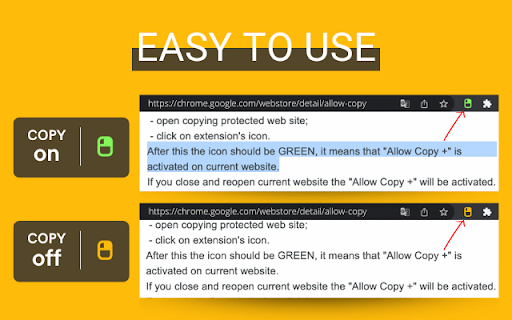
🤩 If you like "Allow Copy +" rate 5 stars to extension 🤩 FEATURES: - remove copy protection, enable copy text, remove block selection; - allow right mouse click and turn on context menu; - activate / deactivate for specific domain; - sync with all chrome browsers with the same google account; - free and easy to use. 🚨🚧🚨BETA FEATURES: (Please, do not be scrupulous about these features, they are still in test mode) - grab text from image https://youtu.be/0rgolOJs_7g (extract text from images on linkedin wall, from instagram wall and some other websites); - extract text from google docs, and extract text from same technology used websites HOW TO USE: Just click ICON. GREEN - activated copying. ORANGE - deactivated copying. Activization works for the website(domain). HOW TO USE, DETAILY: Its turned off by default, and you can see ORANGE icon. To activate text selection and copying: - open copying protected web site; - click on extension's icon. After this the icon should be GREEN, it means that "Allow Copy +" is activated on current website. If you close and reopen current website the "Allow Copy +" will be activated. To deactivate for website just click icon one more time (the icon must changed to ORANGE color). - How do I copy a copy protected web page? - How can one copy text from a site in which the copy function is disabled? - How do I copy text from a protected webpage on Chrome? - How do I copy text from a content-protected website? - How can I copy text from a web page where the text is copy protected? - How do I copy text from a website that cannot be copied? - How do I copy text from websites that don’t allow it? - Why can't I copy text from some websites? - How do you force copy text from a website? - How do I copy past an unselectable text? - How do I absolute enable right click & copy if disabled? - How do I copy text when right click is disabled? - How do I enable right click copy in Chrome? - How do you copy and paste without right clicking? - Why can I not right click to copy and paste? I'm happy to help. Please, add review to "Allow Copy +" extension. Thank you.

Highlight and Copy Protected Text
Use Highlight and Copy Protected Text – a Chrome extension to unblock copy. Allow right click on non copy websites with ease. Break through content barriers using Highlight and Copy Protected Text, the ultimate tool for overcoming restrictions on websites. It is a powerful Chrome extension that allows users to bypass restrictions on websites that disable text extracting. With just a few clicks, you can regain access to text content that is otherwise locked, allow copy and paste, select, and use information for your personal or professional needs. The extension reactivates right-click functionality and restores access to disabled context menus, ensuring a seamless browsing experience. 🧩 Why Pick Highlight and Copy Protected Text? ▪ A Chrome add-on that unlocks extraction where it was impossible. ▪ Works seamlessly to retrieve content from websites that disable it. ▪ Effortlessly bypasses blocked extraction and paste restrictions. ▪ User-friendly interface that requires no technical expertise. 📜 Must-Have Capabilities for Your Needs 🖇️ Works on any site, bypassing restrictions in seconds. 🖇️ Efficiently allow select and copy content without hassle. 🖇️ Works as a versatile copy any text extension for all needs. 🖇️ Powerful tool to restore extraction functionality on restricted websites. 🗝️ Transform Your Browsing in Seconds ✨ Access content from restricted website pages with ease. ✨ Toggle “right-click options” and turn on full functionality seamlessly. ✨ Use the extension to reclaim access to critical content for your research or projects. 📝 Improve Your Digital Exchanges 🖋️ With our copy paste text extension, content barriers disappear effortlessly. 🖋️ Easily extract protected text on websites, even from challenging sources. 🖋️ Learn how to access restricted content in just a few clicks. 💡 Getting Started is Easy ・ Install the Extension: Add Highlight and Copy Protected Text to your Chrome browser. ・ Access Functions: Open the side menu to enable right-click capabilities. ・ Highlight and Extract: Select any text, even on restricted pages, and retrieve it instantly. 📄 Modern Tech for Seamless Use 🖱️ Enable copy-paste & right-click mouse with a single toggle. 🖱️ Works on restricted websites, breaking barriers effortlessly. 🖱️ Bypasses content unable to be copied warnings, simplifying workflows. ✏️ Elevate Your Productivity with Highlight and Copy Protected Text 📌 Extract content from a protected web page with ease for fast research. 📌 Turn challenging websites into accessible resources using allow copy extension tools. 📌 Master how to extract text that cannot be copied and improve your efficiency. 🌐 Intuitive Solutions for Any User 🌀 An intuitive interface makes removing restrictions from pages a breeze. 🌀 Easily reclaim functionality on sites where copying is disabled. 🌀 Efficient processing ensures you can extract protected web page text without interruptions. ⭐️ Convenient Control at Your Fingertips ⚡️ Access features directly from your Chrome browser—no complex setup required. ⚡️ Toggle options easily to allow extraction and paste on any website. ⚡️ Reclaim usability on extract protected text from website pages. 📊 Smooth Out Your Work Process 📈 Save time with our “copy anything extension” for seamless interactions. 📈 Break through limitations like restricted extraction and pasting with ease. 📈 Experience seamless, unrestricted extraction with our enable copy text extension. ⁉️Frequently Asked Questions ❓ How to copy something that isn’t copyable? ✔️ Simply activate the extension, toggle the features to enable restricted actions, and interact seamlessly with previously inaccessible content. ❓ Does it work on all websites? ✔️ Yes, the extension works on most sites, allowing you to bypass restrictions on websites that disable it with a simple toggle. ❓ Is Highlight and Copy Protected Text secure? ✔️ Absolutely! The extension respects your privacy and doesn’t collect or store data from your browsing activities. ❓ How do I use it? ✔️ Install the extension, turn on the functionality, and start interacting with restricted pages. 🧊 Discover new possibilities with seamless content interaction, even on the most restrictive sites. Navigate protected pages effortlessly, retrieving valuable information for your projects, studies, or professional tasks. With intuitive features designed for simplicity and efficiency, this tool transforms frustrating limitations into smooth, hassle-free browsing, letting you focus on what matters most. 📚 Who Can Benefit from This Tool 🔍 Learners looking to bypass copy protection for a smoother learning process. 🔍 Influencers needing access to restricted materials for content creation. 🔍 Users frustrated by barriers on websites that prevent content extraction. ▶️ Get Started Right Away Don't let online restrictions hold you back any longer. With Highlight and Copy Protected Text, you gain the freedom to interact with previously inaccessible content. Reclaim your time, enhance your efficiency, and browse without boundaries. Install it now and enjoy a smoother, more productive web experience!

Enable Copy Paste - E.C.P
- Click on the extension icon - After a popup is opened, use the “Enable copy paste for all websites” checkbox. - Manually refresh the page and see if the extension has successfully enabled copy paste functionality on the website. - Use "Aggressive Mode" if default mode does not enable copy paste on websites. This extension may not work for websites that use extremely sophisticated methods for disabling copy paste functionality. Privacy notice: This software neither collects nor transmits any personally identifiable information. This software does not track your browsing behaviour. Information necessary for functioning of this software is stored on the devices of the end user, our servers do not have access to this information.

Enable Copy
Crack Disable Copy or Cancel Crack by click the icon. Unblock Context menu and Select is a tool that helps you bypass web site copy protection. Have you ever tried to select a text or access a context menu or copy a text, and nothing happened? Website owners can use technical tricks to disable selecting and copying content from their webpages. With Enable Copy extention, you control of your browser context menu again.

Simple Allow Copy
Remove copy restrictions for a better user experience. First, right-click, remove the restriction on web page copying, and select text to copy
