
aiahphffiolplmdllamhjpkdclmknojh
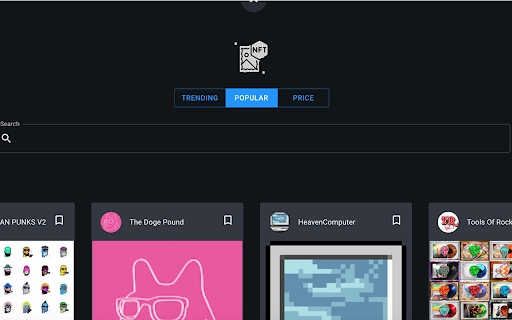
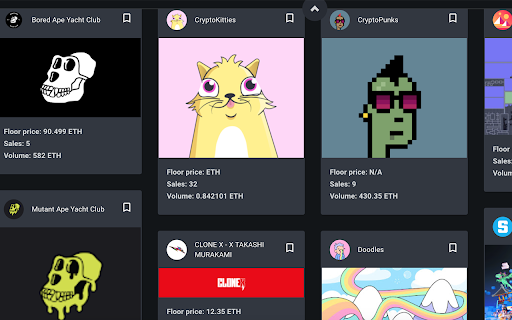
See currently trending NFTs in every new tab that you can browse, sort, & bookmark NFT Tab lets you stay up to date with the most popular and trending NFTs in every new tab. See what's trending, browse new collections, and bookmark any NFTs that catch your eye. By clicking "Add to Chrome", I accept and agree to install the NFT Tab extension and set the Chrome New Tab search to that provided by the service. The search will be powered by Bing:

My Weather
The weather at your fingertips with 'My Weather' Stay up to date with the latest weather conditions in your area with this convenient Chrome extension. You can see the current temperature, and the forecast of the upcoming week for your location once you open a new Chrome tab or window. It's possible to switch between Celsius and Fahrenheit when looking at the weather by pressing the corresponding buttons. Whether you're planning your day or just want to be prepared for the elements, this extension has you covered. *Using a VPN will disrupt the extensions ability to see the user's location, and as a result it won't be able to provide the actual weather forecast. By clicking “Add to Chrome”, You accept and agree to installing the My Weather Chrome extension and setting Chrome New Tab to that provided by the service and the Terms of Use and Privacy Policy. New Tab Search will be powered by Microsoft Bing.

Tally Tab
Your New Tab Calculator Tally provides you with a handy calculator in each new tab. Simply open a new tab and enter in the equation you want to solve in the calculator below the search bar. By clicking "Add to chrome", I accept and agree to installing the Tally Tab extension and setting Chrome New Tab search to that provided by the service. The search will be powered by Microsoft Bing.

Quotes Srch Tab
Google Chrome extension designed to bring a beautiful calming seaside image to your every day peripheral Quotes Srch Tab is a novel extension designed to bring a beautiful calming seaside image to your every day peripheral. The extension will update your search settings and will change your New Tab and default search provider to Microsoft Bing. By clicking "Add to chrome", I accept and agree to installing the Quotes Srch Tab extension and setting Chrome™ New Tab and default search to that provided by the service and the Terms of Use and Privacy Policy at https://supply-media.com/privacy-policy. Now your first browser page will no longer be a boring search bar but your new extension will bring you the joy of a beautiful beach. This browser extension was proudly designed by SUPPLY MEDIA LLC. All rights for technology design and content belong to SUPPLY MEDIA LLC. Once installed you are able to customize the beach tab by choosing your preferred beach from one of the many famous Beach settings in our image library. We hope you enjoy using the beach tab as much as we have. All quotes are sourced from the public RSS feed at https://supply-media.com/feeds/extensions/quotes.rss

Wingman Clock
Wingman Clock: Keep track of time with style. A sleek and reliable Chrome extension for your daily time management needs. Introducing the WingMan-Clock Extension for Chrome! This user-friendly extension allows you to easily add and customize multiple clocks to your browser, so you can keep track of the time in various cities around the world. Simply select the cities you want to monitor and view their current time at a glance on your new tab. The extension also conveniently displays the time differences between the selected cities, making it easy to schedule meetings and stay organized across time zones. With its sleek design and practical functionality, the WingMan-Clock Extension is a must-have tool for anyone who works with colleagues or friends across different regions. By clicking “Add to Chrome”, I accept and agree to install the WingMan-Clock Extension, to set the Chrome™ New Tab search to Yahoo, and to our Terms of Use - https://searchologic.com/Terms-Conditions/, and Privacy Policy -https://searchologic.com/Privacy-Policy/. You may uninstall the extension at any time. To remove our extension from Google Chrome: 1) Click on the three vertical dots icon in the upper right-hand corner of your Chrome browser. 2) Go to "Settings.” 3) In the left menu that appears, click on "Extensions.” 4) From the list of installed Extensions, locate the extension you would like to uninstall.
