
adbhmmjkppnhjjiapocjgjaknpigdoaa
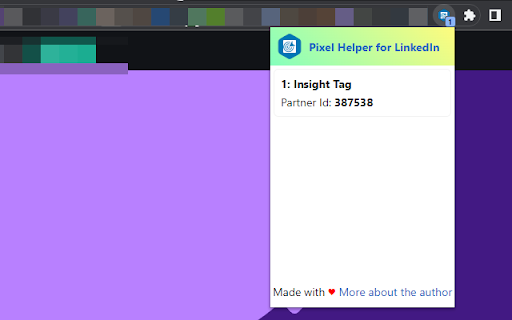
A simple plugin that checks websites for installed LinkedIn Insight Tags. This plugin inspects the correct implementation of the LinkedIn Insight tag. This plugin is not an official Plugin by Linkedin. Its rather inspired by the Plugin by Pearmill.

Snap Pixel Helper
About the extension: Snap’s Pixel Chrome Helper is a simple Chrome Extension, which allows advertisers to verify, debug, and troubleshoot Snap Pixel implementations. About Snap Pixel: The Snap Pixel is a piece of JavaScript code that helps advertisers measure the cross-device impact of campaigns. Advertisers will be able to see how many Snapchatters take action on their website(s) after seeing their ad. The Snap Pixel is best suited for your direct response goals, such as driving leads, subscriptions, or product sales. You can measure these goals beyond what happens during a single session, or on a single device. By adding the Snap Pixel Helper you agree to the Snap Terms of Service at https://www.snap.com/en-US/terms/

Tag Checker Insights
Tag Checker assists website owners in confirming the accurate installation of the tags on their website In 2025, ensuring your Insight Tag is set up correctly is more important than ever. Verify the proper setup of your Insight Tag with the Insight Tag Checker. This essential Chrome extension is designed for advertisers and marketers to confirm tracking code verification, troubleshoot tag issues, and optimize ad campaigns. With its real-time insights, the tool helps enhance performance and enables seamless retargeting setup for your website. Tag Installation Verification: Confirms that the Insight Tag is properly installed on your website, ensuring accurate tracking and analytics. Troubleshooting Support: Detects and resolves issues with your Insight Tag setup, helping to avoid data loss and save time. User-Friendly Interface: Features an intuitive design that simplifies tracking code verification and troubleshooting for all users. Quick Installation: Set up the Insight Tag Checker in just a few clicks, offering reliable verification for your tag. Ad Campaign Optimizer: By ensuring proper Insight Tag functionality, the extension enables advertisers to maximize campaign effectiveness and measure performance accurately. The Insight Tag is a piece of JavaScript code embedded on your website that tracks user activity, enables retargeting setup, and measures conversions. By integrating the Insight Tag, advertisers can access detailed campaign insights and audience data to optimize their ads for better engagement. Install the Extension: Download and add the Insight Tag Checker to your Chrome browser for effortless tag installation verification. Visit Your Website: Navigate to the site where the Insight Tag is installed. Activate the Checker: Click the extension icon to perform a quick tracking code verification. View Results: Instantly confirm if the tag is correctly installed and access troubleshooting options to resolve any detected issues. For marketers and advertisers looking to enhance their ad performance, the Insight Tag Checker is a must-have tool. It ensures accurate tag installation verification, streamlines retargeting setup, and serves as a valuable ad campaign optimizer by providing insights that boost engagement and conversions. Install the Insight Tag Checker today to ensure your website is fully optimized for campaigns and retargeting efforts. 1. How does Tag Checker benefit advertisers and marketers? The extension provides essential verification and troubleshooting of the Insight Tag, helping marketers track conversions, retarget visitors, and optimize ad campaigns effectively. Yes, it works with websites that have the Insight Tag installed. If the tag is absent, the extension will notify you. Yes, Tag Checker is a free tool designed to help you verify and troubleshoot Insight Tags on your website. 4. Can I use Tag Checker for multiple websites? Yes, the tool can be used across multiple sites with the Insight Tag, offering versatility for marketers managing multiple domains.

Datalayer Checker
The easiest way to debug and check the dataLayer implementations without having to use the browser console! We are happy is happy to release Datalayer Checker 3 with several new features and a revamped design! NEW VERSION AVAILABLE! 🔹 Redesigned interface and intuitive user experience 🔹 Integrated event search engine 🔹 Flexible variable visualization: table format or JSON object 🔹 Google Tag Manager container injection removed (to respect manifest v3 rules) EXCLUSIVE FEATURES: 🔹 Capture what matters! Save up to 100 dataLayers with our revolutionary "Snapshot" function 🔹 Deep analysis! Verify your dataLayers in batches by methodically inspecting your captures 🔹 Organize efficiently! Structure your workspace with intelligent filters by domain, dataLayer name, or specific search (e.g.: event_name) to automatically classify your snapshots 🔹 Stay up-to-date! Reopen all your snapshot URLs to capture new data and compare them instantly Transform your analytics experience with Datalayer Checker! Because we're passionate about analytics...

Pixel helper for Linkedin
🔓 Unlock LinkedIn Conversion Insights: Install our Chrome extension to instantly check if websites have LinkedIn Insight Tags and optimize your campaigns for success. 🚀 It is very important to get the right data and this tool will ensure that your LinkedIn Insight tags are not just there but working well. 🕵️♂️ Key Features of Linked Pixel Helper chrome extension🌟 Effortless Inspection: A user-friendly plugin will also make it simple to check your website for LinkedIn Insight tags even if you are a newbie. 🕵️♀️ Accurate Implementation Check: This plugin also ensures that LinkedIn Insight tags are added in the proper manner. It doesn’t raise any questions concerning tracking your data well. 🛠️ Streamlined Data Tracking: Use a tool that not only verifies but also assists with the smooth integration of LinkedIn Insight tags to help refine your marketing strategies and improve their accuracy. 📊 How to use LinkedIn Pixel Helper? 🛠️ 🌐 Visit the Chrome Web Store. 🔍 Search for "Linked Pixel Helper" in the search bar. 🛒 Click on the extension in the search results, then click "Add to Chrome" to install it. 📌 After installation, the extension's icon should appear in your Chrome toolbar, typically near the address bar. 🚀 Click on the "Linked Pixel Helper chrome extension" icon to activate the extension. 🌐 Navigate to a webpage where you have implemented LinkedIn Insight Tags, and you want to monitor their activity. 📊 The extension should provide diagnostics for any installed LinkedIn Insight Tags by showing information about each of them. 🔧 Use the insights provided by the extension to optimize your campaigns for success on LinkedIn.
