
aclfbmpmklcmecgmcgoghblmkmecbfde
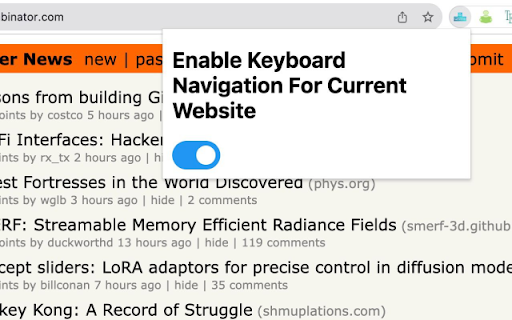
Browser plug-in, it is convenient to use the left and right keys of the keyboard to turn pages This product is a keyboard shortcut that allows users to navigate web pages by pressing the left and right arrow keys. This can be a useful feature for users who prefer to use their keyboard instead of their mouse. Quick and easy page navigation Improved accessibility for users who prefer to use their keyboard Supports multiple pages Efficient use of network resources

Keyboard Shortcuts
Create custom key combos to control pages and tabs. Create your own custom keyboard shortcuts with this software. To begin, simply install the software. Click on the extension icon, start creating your own custom keyboard shortcuts. Copying URLs for citations, duplicating a tab to compare two forms, or jumping instantly to the page top might sound trivial, but each requires multiple mouse movements and context-menu clicks. A shortcut extension condenses those routines into single keystrokes—Ctrl + Shift + U to copy the current link, Alt + D to duplicate, Alt + ↑ to scroll to the top. Over a typical eight-hour day, eliminating a few seconds from a hundred touchpoints can reclaim 15–20 minutes of productive time. 2. Fully customisable to match muscle memory Built-in browser shortcuts often collide with operating-system defaults, local language layouts, or personal preference. A shortcut extension lets you overwrite or supplement native bindings with combinations that feel natural to you. Left-handed users can migrate commands away from the arrow keys; design teams can standardise shortcuts across machines so everyone follows the same editing conventions. Because the map lives in the browser’s storage, your setup persists across reboots and syncs with any synced profile. 3. Minimises hand travel and repetitive strain Switching constantly between mouse and keyboard forces the wrist into awkward angles and increases the risk of repetitive-strain injuries (RSI). By performing scroll, copy, mute, and close-tab commands without leaving the home row, you keep your hands in a neutral posture. Ergonomists recommend this “keyboard-centric” approach to cut down on ulnar deviation (sideways wrist bending) and the pinch grip that causes thumb fatigue on trackpads. Over months, fewer micro-stresses translate into healthier tendons and reduced discomfort.

Chrome Extension Toggle - Pin/Unpin Toolbar
Quickly enable/disable Chrome toolbar extensions with one click. Manage your pinned extensions efficiently. 🔄 Chrome Extension Toggle - Pin/Unpin Toolbar Chrome Extension Toggle is a powerful yet simple tool that helps you manage your browser's toolbar extensions with just one click. Tired of manually enabling and disabling extensions? This extension makes it effortless to control which extensions appear in your toolbar. - 🔄 One-Click Toggle: Instantly enable or disable all your toolbar extensions with a single click on the extension icon - ⚙️ Customizable Toolbar List: Select exactly which extensions you want to include in your toolbar management - 🔍 Visual Status Indicator: Clear visual feedback shows whether your toolbar extensions are currently enabled or disabled - ⚡ Quick Access: No need to open the options page for basic toggling - just click the extension icon in your toolbar - 📋 Organized Management: In edit mode, selected extensions appear at the top of the list for easy reference 👥 Perfect for: - Users who frequently switch between different sets of extensions - Anyone who wants to declutter their browser toolbar without uninstalling extensions - Power users who need to quickly enable/disable extensions for different tasks - People who want to improve browser performance by temporarily disabling non-essential extensions 🛠️ How It Works: 1. Select your toolbar extensions in the options page 2. Click the extension icon in your toolbar to toggle all selected extensions on/off 3. The icon changes color to indicate the current state (enabled/disabled) Simplify your browser experience and take control of your toolbar extensions with Chrome Extension Toggle! 🚀

PageTrail
This Extension tracks your daily surfing activity PageTrails is designed to enhance productivity by tracking time spent on various websites. It records active browsing time, aggregates it at the domain level, and provides a concise summary of web activity. This extension is ideal for users seeking to monitor their web usage patterns and optimize their online time.

nextpage
use SPC key to goto next page when at the bottom of a page. When reading online documents or novels, I usually use SPC to scroll page. But SPC doesn't go to next page automatically. This add-on rebinds SPC key so that it scrolls page when there is more on the page, it goes to next page when you are at the bottom of a page. You can also press n key anytime to go to next page directly. From v2.12.0, it prerender or prefetch next page link to speed up page load. From v3.2.0, on touch device, swipe up when at page bottom also go to next page automatically. nextpage is free software released under GPLv3. The source code is hosted at github. BUG Report =================== If you found a problem and would like to get it fixed, please report it here: https://github.com/sylecn/ff-nextpage/issues nextpage tries hard to not get in your way. If you find nextpage breaks your blog admin panel, some online registration form, or any kind of cool web application, please report a bug. You can also use (ignore-on "URL_REGEXP") in user config to disable this add-on on given website. Currently English, Chinese and German web pages are best supported. Most other languages work too, just not as well maintained. Submit a bug if you found something that didn't work. nextpage allows you to bind keys to some nextpage related functions. Here is the default key-bindings: SPC scroll up/next page n next page p previous page Here is the real code for this default binding: (bind "SPC" 'nextpage-maybe) (bind "n" 'nextpage) (bind "p" 'previous-page) You can disable/overwrite built-in bindings and define your own bindings easily. Read the built-in help document with the installed add-on for more information. Click help button in add-on option. For example, in user preferences page, You can bind c to copy page title and url: (bind "c" 'copy-title-and-url-maybe)
