
aadmkpomckipjhibokociljbiejknchn

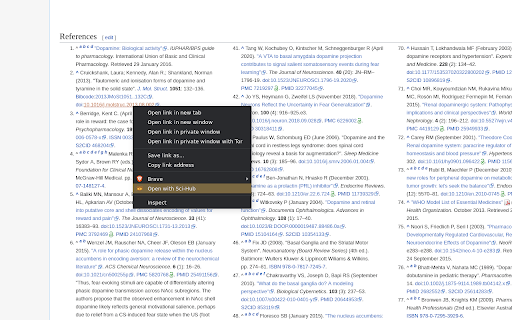
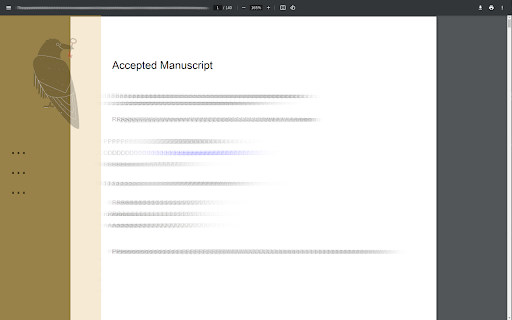
Open links with Sci-Hub and more! Features and integration for Sci-Hub: • Google Scholar results automatically opened with Sci-Hub • 𝘖𝘱𝘦𝘯 𝘸𝘪𝘵𝘩 𝘚𝘤𝘪-𝘏𝘶𝘣 in context menu (right-click options) for all URLs • allows to hide Sci-Hub sidebar • Multiple domains in case Sci-Hub gets banned • Customizable through extension options • Open-Source (Additional Information ➔ Website)

LYH DOI Tools
● A Chrome extension to add Sci-HUB or Lib-Gen download icons to every DOI-link on the page, with various other small changes to make scientific paper downloading less annoying. ● For user guide, source code, etc. : https://github.com/liyuanhe211/LYH_DOI_Tools ● Features: ● Add a download button to every DOI on the page. ● Directly download PDF from citation info with the context menu option or use the shortcut [Ctrl+Shift+S]. ● Batch download PDFs from Lib-Gen for all DOI found in one page. ● Jump unnecessary clicks to make browsing experience smoother: ⚬ [Sci-Hub]: Click the "Open" button for you. ⚬ [Lib-Gen]: Click the "GET" button for you. ⚬ [Lib-Gen]: Auto refresh when 503 is triggered due to download several files at once (very useful for download large batch of files). ⚬ [Wiley]: Skip the Wiley ePDF page and direct download a PDF. ⚬ [x-mol.com]: The totally meaningless waiting period (a few seconds) before redirection when searching references on x-mol.com. ⚬ [Scifinder]: The need to click the single DOI link when opening Other sources on SciFinder. ● Explanation of required permissions: ⚬ "tabs" permission: The extension needs to know the content and URL of the tabs to find DOIs, and to modify the content of the webpage to add download icons according to the found DOIs. ⚬ "storage" permission: To store settings like preferred sci-hub domain and other options. ⚬ "contextMenus" permission: Add a contextMenu item as a quick way to access x-mol.com search engine.

Entire screen scihub document viewer
Read the document using your entire screen without sidebar

OneScholar
【OneScholar】超级好用的学术科研插件,全方位提高科研工作者的科研效率,支持显示详细文章信息、期刊等级信息、大学分类排名信息、网页翻译、文章引用等功能(原 SciHub Addon) 原名 SciHub Addon,详情请访问:https://www.scigreat.com/info/onescholar 功能介绍: ✅【多种文献数据库】 完美支持 Sci-Hub、Unpaywall、PubMed、OpenAlex、ResearchGate 等多种文献数据库。 ✅【翻译功能】 1、支持多种翻译引擎服务,包括 BY、HS、GG、RS、YX 等。 2、支持自定义翻译引擎,如 OpenAI、Gemini、DeepSeek、百度翻译、有道翻译 等十多种第三方翻译引擎。 3、翻译时,先选中文字,按 T 即可翻译,按 Y 删除翻译(快捷键可更换) ✅【文献引用】 1、支持文献引用功能(包括 Endnote、Mendeley、RIS、BibText、GB/T 7714、ACS、AMA、APA 等) 2、部分文献引用(ris/enw)导入 Endnote 时,可以自动同时下载文献 PDF 并导入 Endnote。 3、部分文献引用时,可以将文献在线快捷导入 Mendeley 网页版(需提前登录 Mendeley 账号) 4、部分文献引用时,可以将文献在线快捷导入 Zotero 软件中。 ✅【学术不端检测】 1、支持 PubPeer 检测学术不端行为,若存在记录可点击 PubPeer 图标查看详细情况。 2、支持中科院 Amend 学术论文预警系统检测学术不端行为。 3、支持通过 Retraction Watch 查看文章具体的撤稿信息。 ✅【PubMed 特殊支持】 支持 PubMed 期刊缩写匹配、显示详细引用信息、快捷查看文章摘要、网站筛选功能。 ✅【文章被引量】 支持显示文章在 谷歌学术 、CrossRef、Semantic Scholar、PubMed、OpenAlex 上的被引用数量。 ✅【显示文章信息】 1、点击插件图标可获取详细文章信息,如 IF 影响因子、分区、引用次数、文章网页、PDF 等,点击 PDF 图标可下载 PDF 或者跳转到文章页。 2、支持 知网、谷歌学术 (镜像)、PubMed、WOS、Aminer 等上千种学术网站显示详细文章信息(网页存在 DOI / PMID / PMCID 即可) 3、支持部分文献 AI Summary 功能,基于 GPT NLP 技术生成简短的论文摘要。 ✅【文章筛选排序】 支持 PubMed、谷歌学术、百度学术、Science Direct 等 50 多个学术站点文章搜索界面按 IF 影响因子、JCI 引文指标、JCR 分区、新锐分区、新锐分区 Top 期刊、Review 期刊、引用次数、发表年份 等进行筛选排序。 ✅【显示大学分类排名】 支持 CNKI、万方、百度学术、谷歌学术 等 100 多个学术站点显示 985工程、211工程、双一流、C9 联盟、E9 联盟 等大学分类情况,以及 QS、US News、泰晤士、软科 等世界大学排名情况。 ✅【显示期刊等级】 1、支持显示 JCR 分区、影响因子、新锐分区(原中科院分区)、EI 工程索引、CSSCI(南大核心)、北大中文核心 等 180 多个期刊数据库收录索引情况。 2、支持 知网、百度学术、谷歌学术、Web Of Science、PubMed 等 400 多个学术站点显示期刊详细等级信息。

Science Research Assistant
Search for scientific information as quickly as possible while researching and writing scientific papers. Save notes for reference. Science Research Assistant is a powerful Chrome extension designed to assist scientists, students, journalists, and anyone seeking reliable scientific research. Whether you're writing a thesis or gathering facts, this tool ensures you find and utilize research efficiently and effortlessly. With a simple selection of any keyword or phrase on a webpage, you can instantly search relevant scientific journals. The extension also offers advanced meta-search options and other valuable tools to enhance your research process. You can easily save text from webpages or PDFs for future reference, and seamlessly export your saved records to PDF for better organization. The built-in algorithm analyzes text from any webpage, identifying the most frequently used keywords and key information, all while highlighting important details. You can even customize the algorithm with your own rules, enabling you to swiftly pinpoint the most crucial insights from lengthy papers or web content. If you're still in the early stages of exploring a research topic or formulating a hypothesis, the Science Research Assistant helps you navigate the overwhelming volume of available information. With its News and Trends feature, you can quickly gauge the popularity and future relevance of a topic, while receiving related suggestions to inspire fresh ideas. This extension is your essential tool for fast, accurate, and insightful research, helping you stay ahead in your field. Science Research Assistant will help you to: · Search and analyze the complex structure of web information · Search scientific journal articles · Search books · Search patents · Search records history · Save notes to record's history · Backup your notes · Compile reports and export to PDF · Use helpful meta-search patterns to dig deeper into the web · Track news and trends Usage: - Save selection text to notes – select text on a web page, click the right mouse button, and choose “Add .. to notes” from your context menu. - Keyword analysis – click the right mouse button and then choose “Keyword frequency analysis (beta)” from the context menu. - Keyword distribution – click on the highlighted keyword to see all its appearances in the text. - Keywords analysis settings overlay – choose the number of words in a keyword phrase (one to five) and the minimum required frequency within the text (from two to 10) you would like to get analysis for. Click the refresh button or remove the results button to remove the analysis. - Selection search – select any word in text on a web page, click the right mouse button, and choose “Science search for ..” from your context menu. This activates a search of various journals and web tools (see Settings). - Settings/Manual search – click on the extension icon in the top right corner of your web browser. - Filter saved records by keyword - Click "A+" button to resize the text - Click "📤 to PDF" button to export selected records and notes to PDF. - Click 🗑️to remove selected records and notes. We always welcome suggestions on what science sources and useful tools to include in future releases of the Science Research Assistant, so do not hesitate to contact us by using the provided form in the settings section. Thanks for all feedback!
